
For optimal recruitment decisions, you may have to share the data that you collected from candidates. So you want to be able to decide how you share this data. You need to determine what information is visible to, for instance a hiring manager, and what is not. With the new filters in the Compare candidates page, you can do exactly that: create the best view of the data.
Recruiters and Recruitment admins can use the filter functionality. On the page of any recruitment, select the candidates you want to create a view of and click on ‘Compare’.On the Compare candidates page, click on ‘Filters’. Now you can select exactly what information should be made visible, or hidden. The filters you see depend on the available data. For instance if the recruitment has a selected lens and the Learning Agility additional insight, the filter will contain: Competencies, Extremes, Learning Agility, Values, and Potential. At least one of these should be active to be able to save the changes to the Compare candidate page. This is why filters are not available when a Screening lens is used in the recruitment. Note that the set filters will be undone when you change the lens.The filter button will indicate the number of filters that are currently selected.
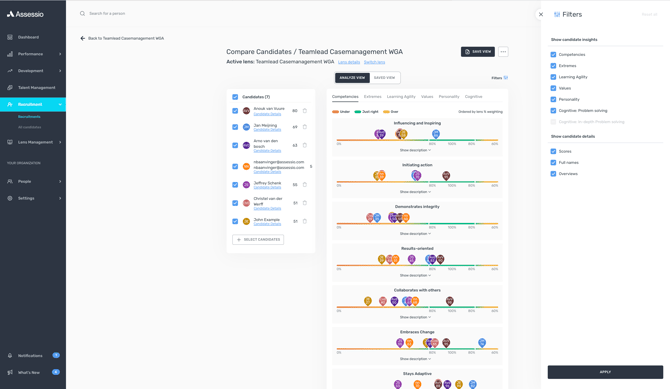
Recruiter and Recruitment admins will also be able to apply filters around what candidate details should be available in the recruitment view. The score filter will hide the candidate assessment scores, only highlighting where the candidate falls on the scale(s). The name filter will hide the candidate’s name, enabling a more impartial review of the candidates. Lastly, the overview filter will remove access to the candidate’s full overview page (and access to the report studio), thus ensuring that those who have access to the recruitment view only see the most relevant data of the listed candidates. The filter button will indicate the number of filters that are currently selected.
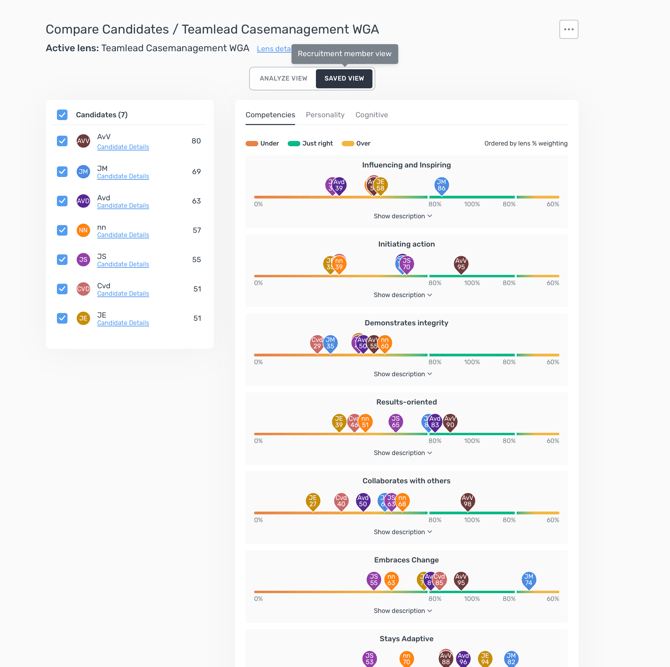
Once a Compare candidate page has been filtered, the filtered view can be set as the recruitment view. Saving the recruitment view will also save the filters. Recruitment members accessing this view will not be able to change the filters or see that filters have been applied. The recruitment view will only have one state, which means that the last saved view will be the one visible to all Recruitment members (decision makers)
 .
.