
Quotation in VLOXQ
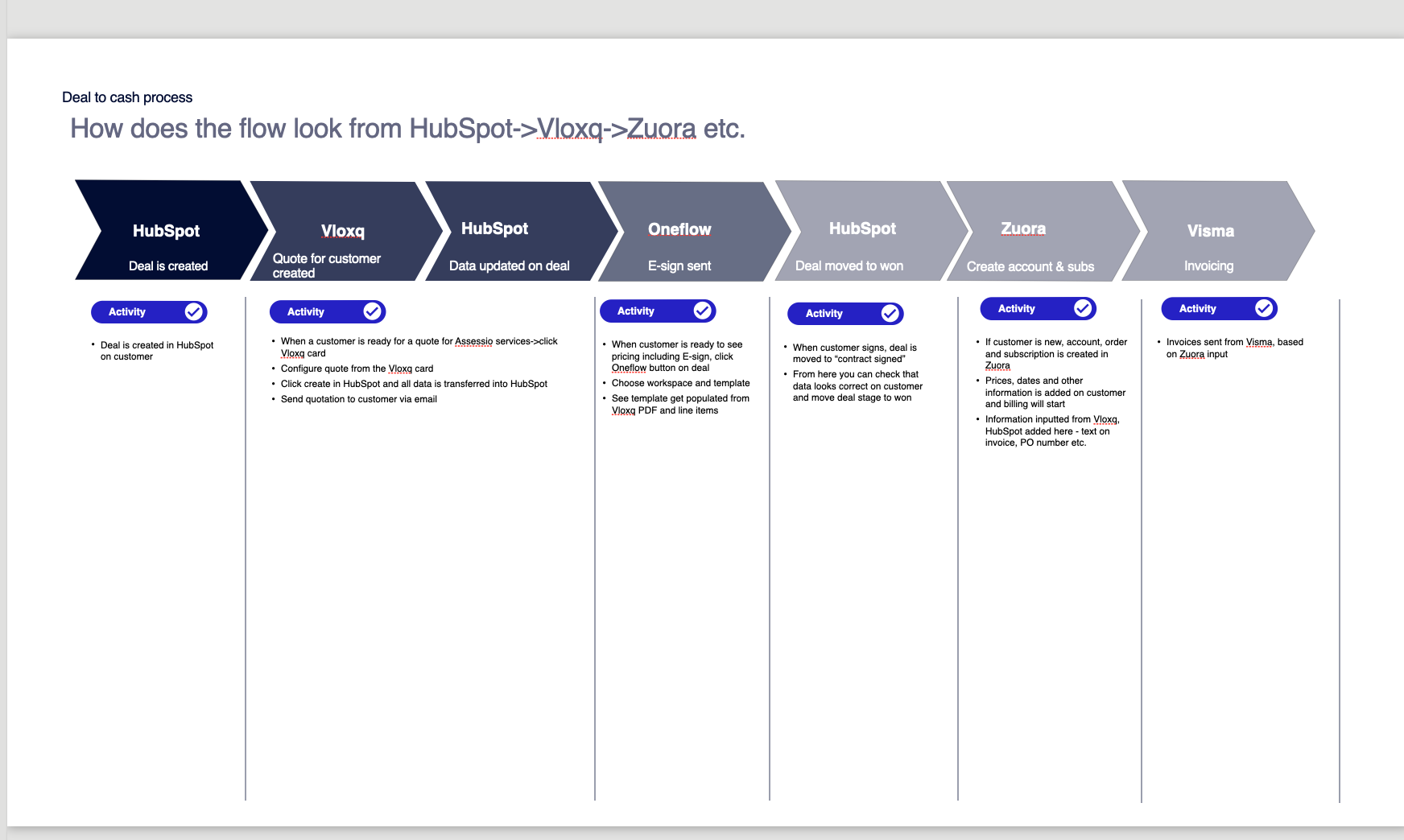
Full flow from HubSpot→Vlox→Zuora
.png?width=670&height=401&name=image%20(37).png)
Quotation - How to handle new customer, upgrade, downgrade, non-recurring, migration in quotes
This section contains
-
New customer
-
Non-recurring
-
Upgrade/downgrade
-
Migrations
-
Conversions
See slides for all parts if the process here:
Full flow from HubSpot→Vlox→Zuora
.png?width=670&height=401&name=image%20(38).png)
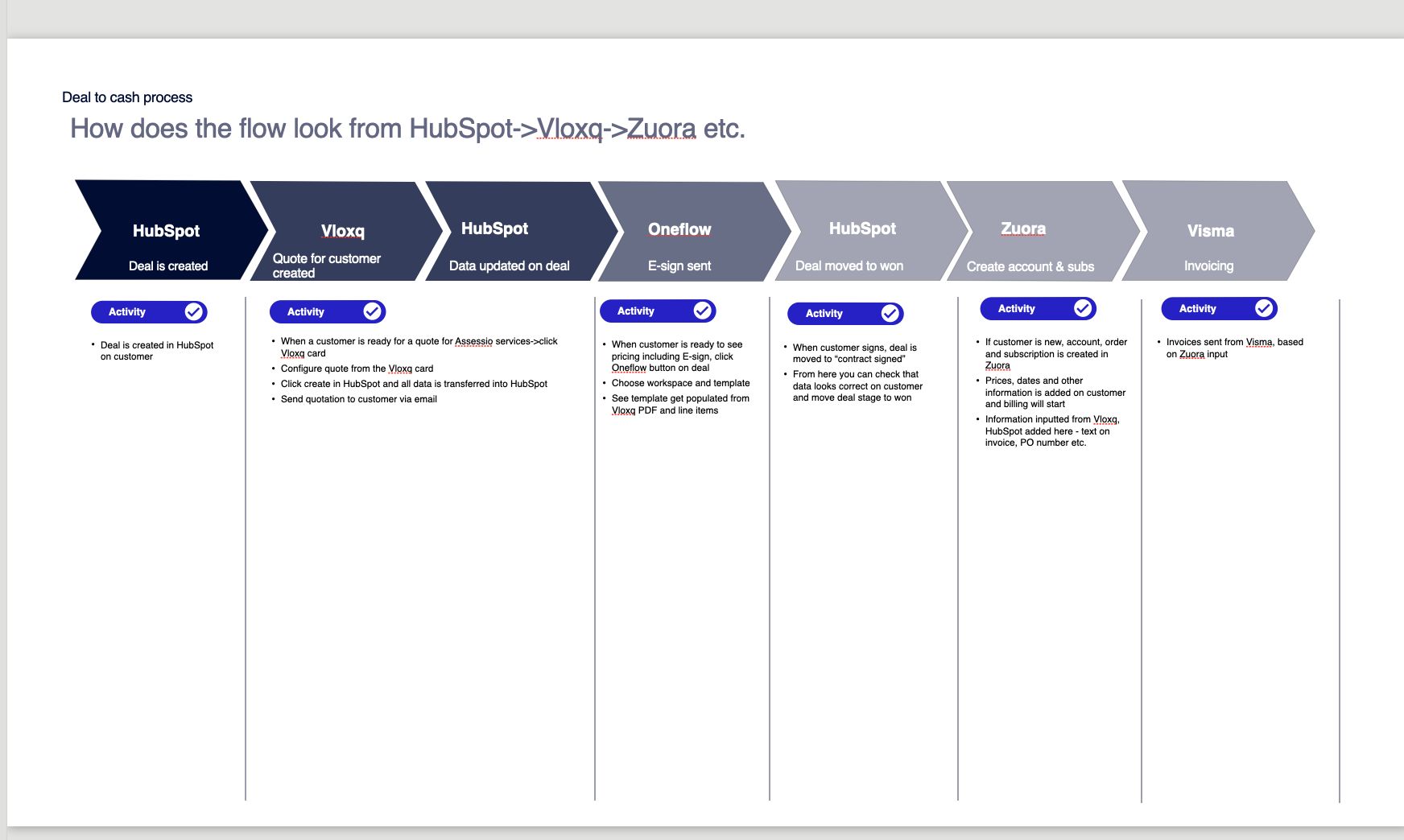
New customer flow
See flow in slides here
See video walkthrough of it all
.png?width=670&height=380&name=image%20(39).png)
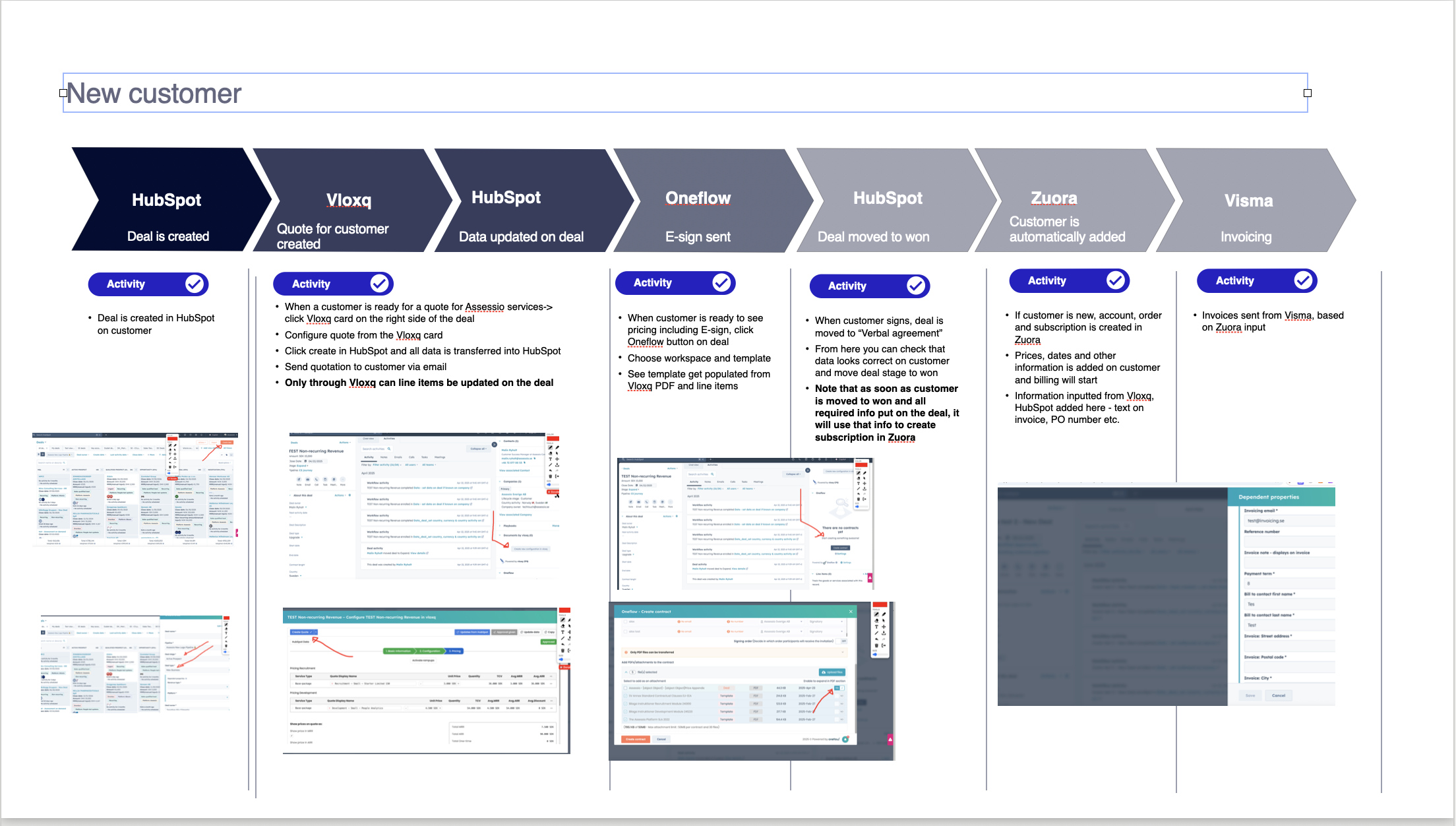
Read step by step description here
1. Create deal in HubSpot
-
Create a deal for the customer.
2. Open the Vloxq card
-
When the customer is ready for a quote, click the Vloxq card on the right side of the deal.
-
Configure the quote, then click "Create" – this sends data back into HubSpot.
3. Send quote
-
Send the quotation to the customer by email.
-
Note: only Vloxq can update line items on the deal.
4. Trigger e-sign with Oneflow
-
Click the Oneflow button on the deal.
-
Choose workspace and template. Template is auto-filled with quote data from Vloxq.
5. Customer signs
-
Deal stage is moved to “Verbal agreement”.
-
Verify data and move deal to “Won”.
6. Automatic creation in Zuora
-
If the customer is new, account, order, and subscription are created in Zuora.
-
Information from HubSpot and Vloxq is used (PO number, invoice text, etc.).
7. Invoicing
-
Invoices are sent from Visma, based on Zuora input.
Non-recurring flow
See flow in slides here
.png?width=670&height=378&name=image%20(40).png)
See video walkthrough here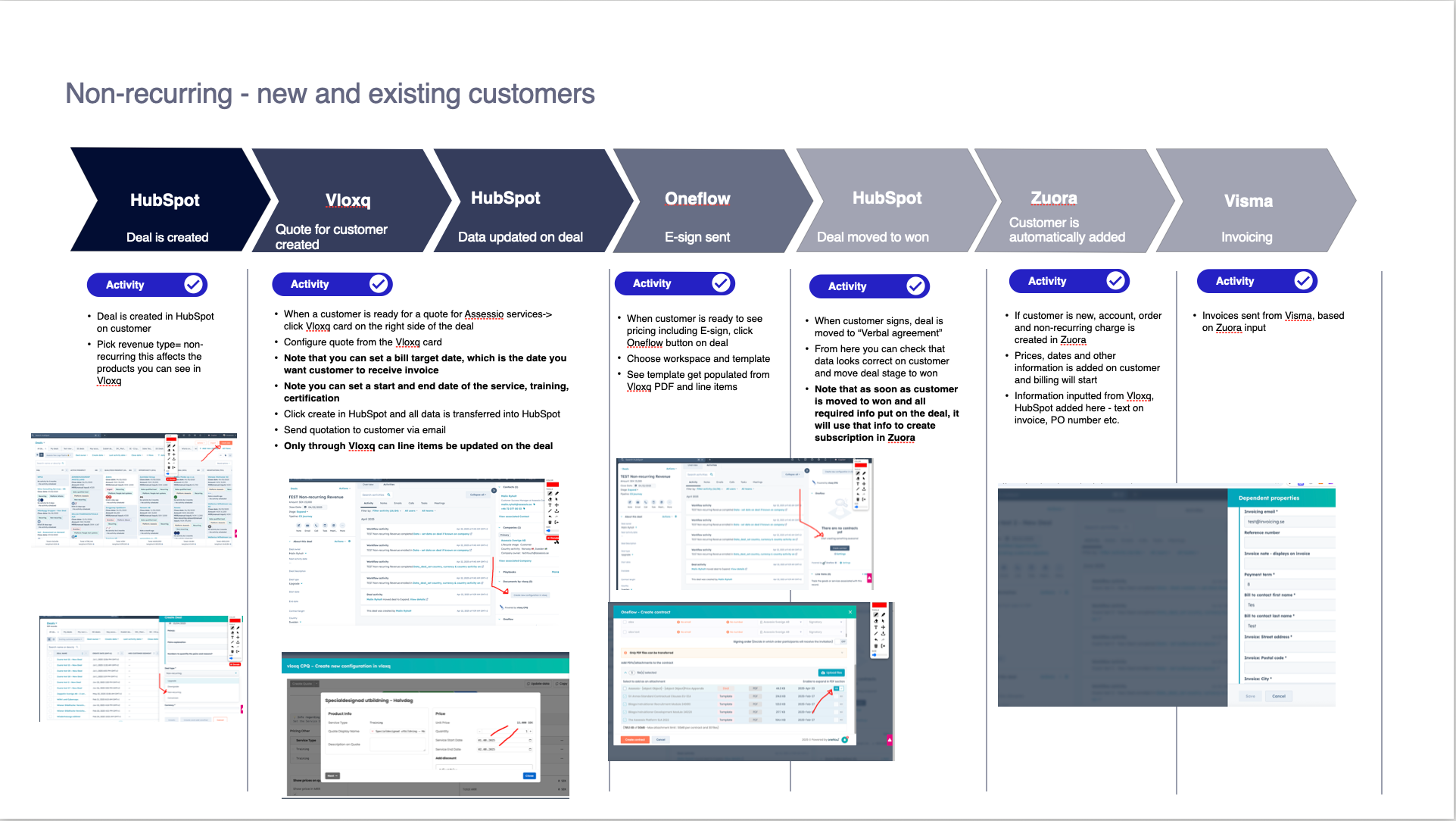
Assessio non recurring new flow
Read step by step description here
1. Create deal in HubSpot
-
Set revenue type = non-recurring (affects which products are available in Vloxq).
2. Configure quote in Vloxq
-
You can set:
-
Billing target date (when you want the customer to receive the invoice),
-
Start/end date for service, training, or certification.
-
-
Click "Create" → data is pushed to HubSpot.
3. Send quote & e-sign
-
Email quote to the customer.
-
Trigger e-sign by clicking Oneflow and selecting template.
4. Customer signs
-
Deal stage: “Verbal agreement” → verify → move to “Won”.
5. Zuora handling
-
If customer is new, a non-recurring charge is created in Zuora.
6. Invoicing
-
Invoice is sent via Visma, based on Zuora data.
Upgrade/downgrade
See flow in slides here
.png?width=670&height=378&name=image%20(41).png)
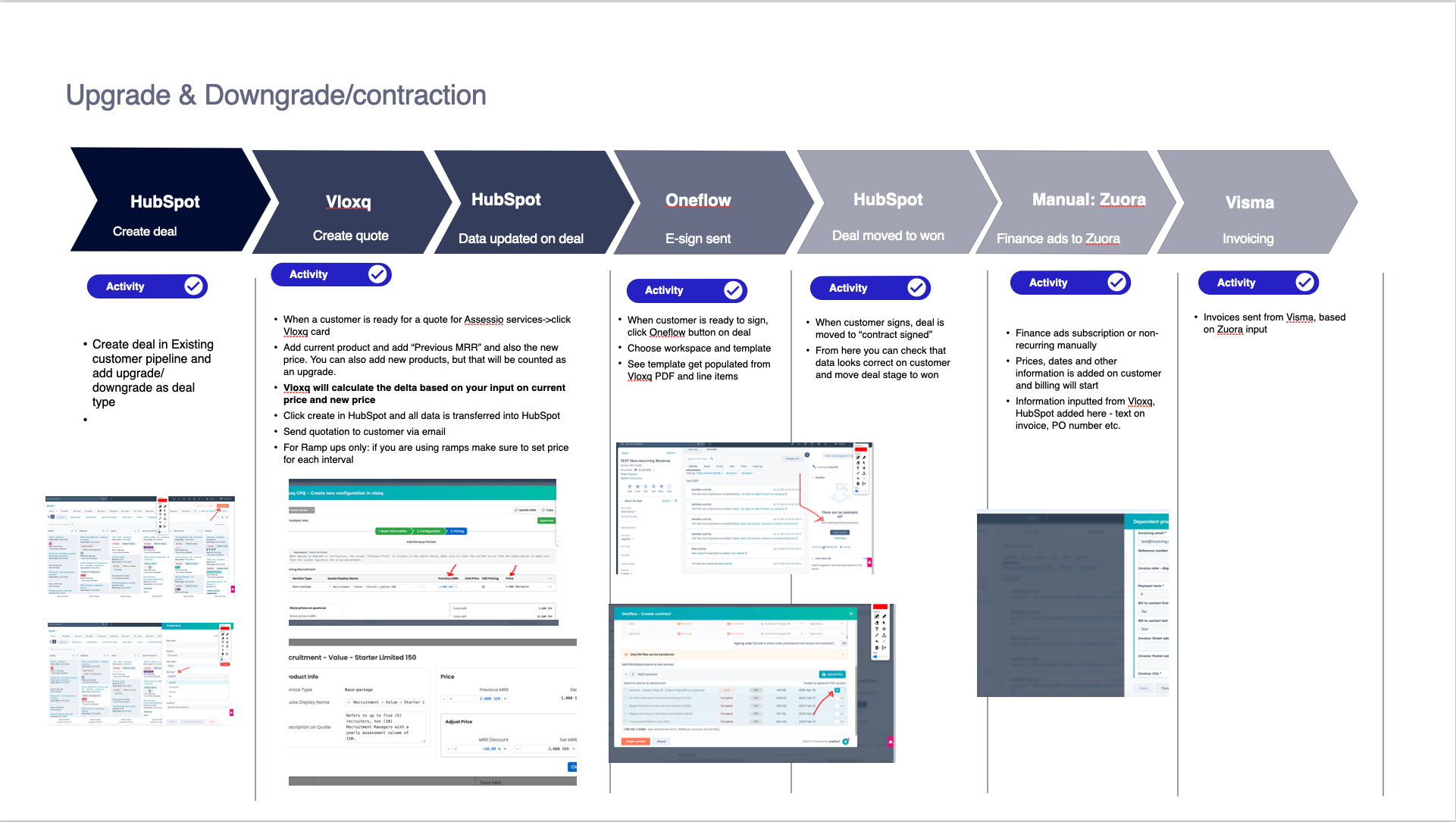
See short video here
Read step by step description here
1. Create deal
-
Use Existing Customer pipeline.
-
Set deal type to Upgrade/Downgrade.
2. Configure quote in Vloxq
-
Add current product, “Previous MRR”, and the new price.
-
Add new products if needed (these count as upgrades).
-
Vloxq auto-calculates the delta.
-
If using ramps, set pricing per interval.
3. Create & send
-
Click "Create" → quote data is pushed to HubSpot → email the quote.
4. E-sign
-
Use Oneflow to select template and send e-sign.
5. Customer signs
-
Deal stage becomes “Contract signed” → verify → move to “Won”.
6. Zuora update (manual)
-
Finance manually adds the subscription or charge in Zuora.
7. Invoicing
-
Visma sends invoice based on Zuora.
Migration
See slide of flow here
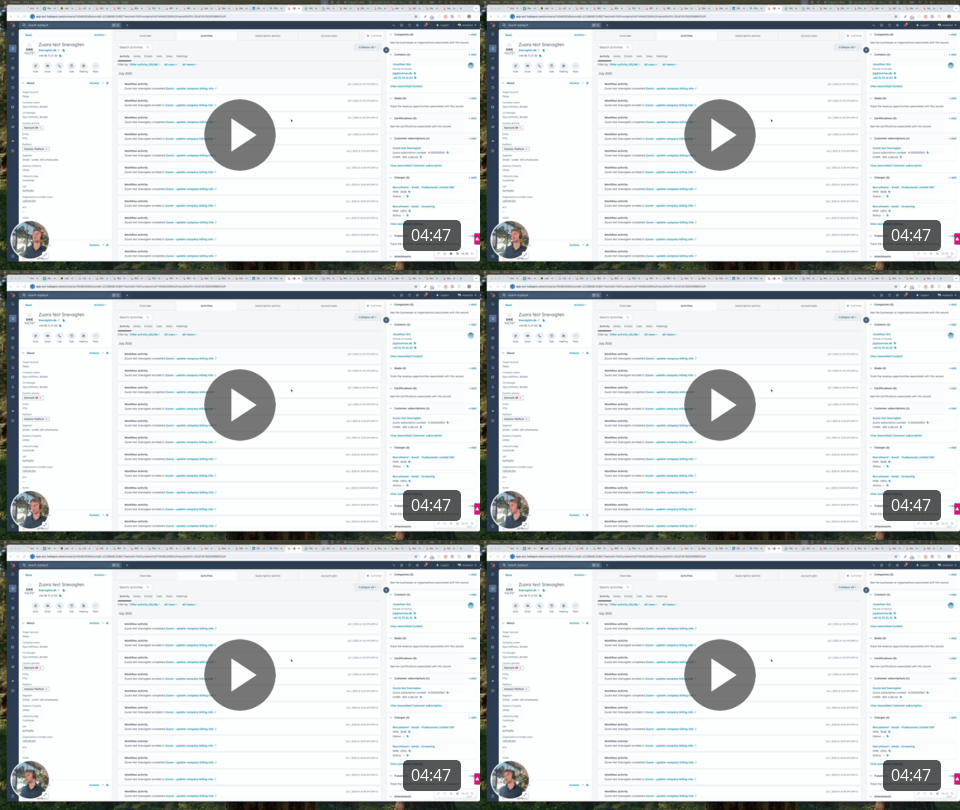
See short video here
Read step by step description here
1. Create deal
-
Use Migration pipeline.
-
Add migration-specific information.
2. Configure quote in Vloxq
-
Select the new subscription the customer is migrating to.
-
Click "Create" to push quote data to HubSpot and send the quote.
3. E-sign
-
Trigger e-sign with Oneflow → pick template and send.
4. Customer signs
-
Deal stage is moved to “Signed” → verify → move to “Won”.
-
Fill in migration-specific fields to help Finance process the subscription correctly.
5. Zuora update (manual)
-
Finance manually enters subscription or charge in Zuora.
6. Invoicing
-
Sent from Visma using data from Zuora.
Vloxq training 1 - showing the full flow