
Jobylon
Jobylon is a modern, European-based Applicant Tracking System (ATS) and talent acquisition platform designed to help employers attract, manage, and hire candidates with a strong focus on employer branding and candidate experience. The software enables organisations to build branded career pages, create flexible job postings, track and manage applicants, automate hiring workflows, and leverage analytics to improve recruitment outcomes. Jobylon is particularly popular with larger employers across Europe, offering customisable workflows, GDPR-friendly features, and extensive integrations with job boards and HR tools to support scalable, data-driven hiring processes.
Connecting a client with Jobylon
The ATS integration can be set up via the back office using the “ATS connection wizard”, which walks the back-office user through the necessary steps to set up the connection to Jobylon.
The first step is to activate the recruitment module, since without this active, the “ATS connection wizard” is not visible. Once activated, the back-office user can navigate to the ATS integration tab and select “+ ADD CONNECTION”.
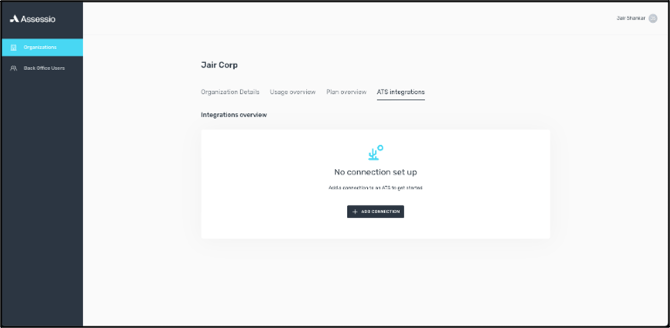
In the case of Jobylon, the wizard consists of 4 steps.
Step 1
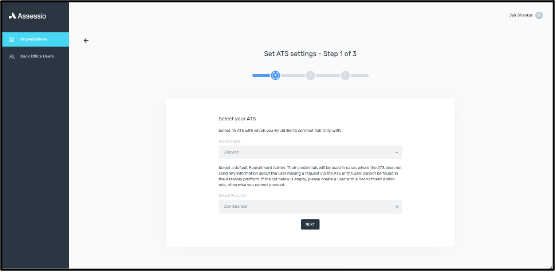
The back-office user is asked to select which ATS they would like to connect the organization to. They should select Jobylon.
The back-office user is also asked to indicate who the default Recruitment Admin should be for the organization. The client should nominate who within their organization should be the default Recruitment Admin.
The default Recruitment Admin was mainly introduced because not all application tracking systems provide information about the recruiter making a request via the integration. Therefore, by setting a default Recruitment Admin, it is ensured that when a recruitment is created via an ATS, the creator is set to this Recruitment Admin. The consequences of this are that all communication with candidates will contain this user’s information as the sender and contact person.
It is important that the organization has at least one user in their system with the role of Recruitment Admin, otherwise the list will be empty, and the back-office user is not able to continue with the setup of the connection.
Step 2
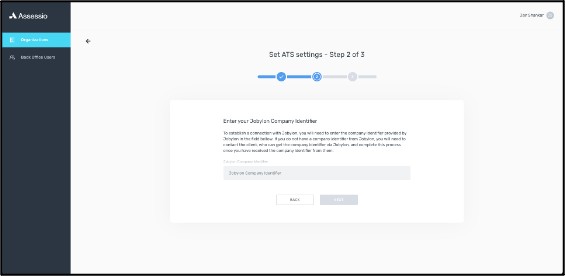
The next step asks the back-office user for a Jobylon Company Identifier. This is a UUID that Jobylon generates when they create the client’s organization in Jobylon. This will ensure that the requests the client makes via the integration is processed by the correct organization in the Assessio platform.
Step 3
The final step contains an overview of all the information that was chosen and submitted by the back-office user.
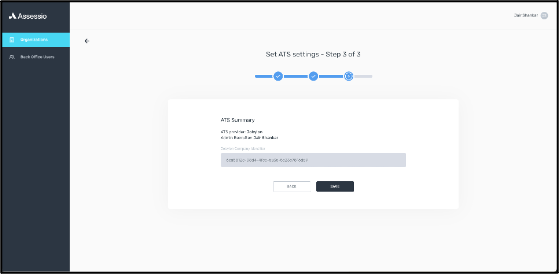
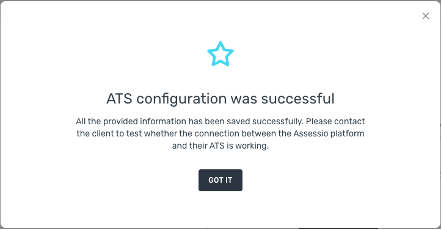
Clicking on save produces a confirmation modal. It should be noted that the ATS integration is not established as yet and is just an indication that the information has been saved.
Step 4
There is a fourth step involved, whereby a user from the client must have Jobylon activate the Assessio integration from their side. This will allow the user to access the Assessio integration when they create a recruitment.
Editing the ATS configuration
Once an ATS integration has been configured, the back-office user is able to edit the configuration via the ATS settings option in the overflow menu.
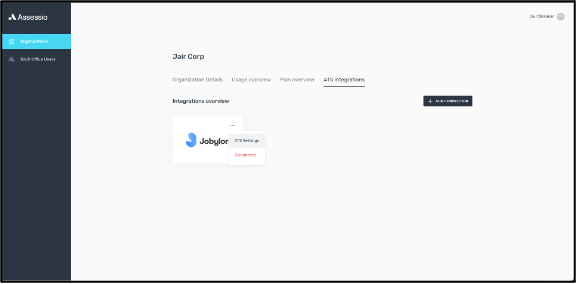
Selecting “ATS settings” takes the user to a dedicated settings page, where the back-office user can change the default Recruitment Admin or update the Company Identifier.
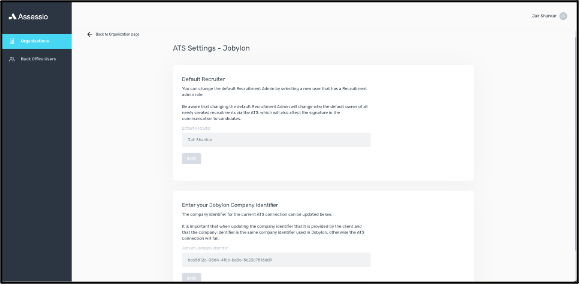
It should be noted that a user cannot be deleted or anonymized if they have been set as the default Recruitment Admin. Therefore, they need to be removed as the default before they can be deleted. If the user’s role has been changed to recruiter, this will have no impact on the ATS integration or what the user can see in the platform. Removing the user from the recruitment module will also have no impact on the ATS integration, but the user will no longer have access to the recruitment module.
Disconnecting with Jobylon
The back-office user can disconnect the ATS integration. This will go into immediate effect and will mean that Jobylon will no longer be able to communicate with the Assessio platform. All the data used within the API will be deleted, but the data within the Assessio platform will remain.
Any candidates who have completed their assessments during this disconnected period will not have their results sent to Jobylon. There is currently no way to get their results into Jobylon, therefore the candidates will need to be invited in a new “Project”. Therefore, it is important that when disconnecting that the client is aware of the impact that this will have.
Jobylon UI
This section will highlight what it looks like from the perspective of the client using Jobylon and how they can use the integration with the Assessio platform.
Job
A recruiter creates what is called a “Job” in Jobylon. The first step to is choose a “theme” for the job. This refers to how the job will look when published. The client will know what they prefer. For the example, the “Classic” theme was selected.
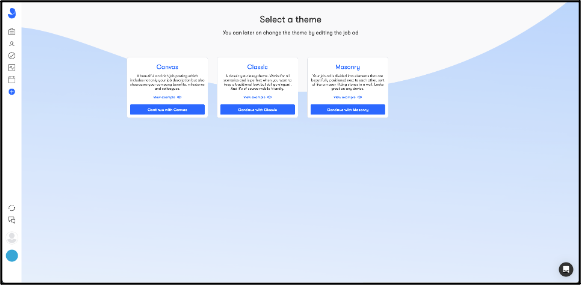
Once selected, the user is asked to fill in general information about the job.
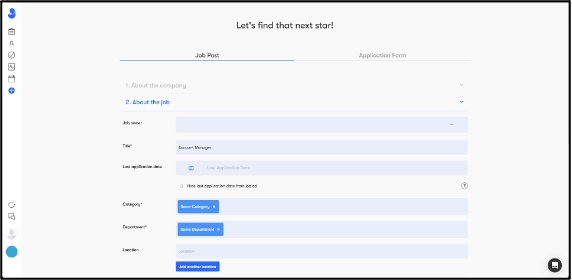
Once saved and published, the user can now navigate to the job and set up the lens they would like to use for the job. It is not necessary to publish the job to do this, since the user might want to keep working on the job before publishing it.
Inviting a candidate without a trigger
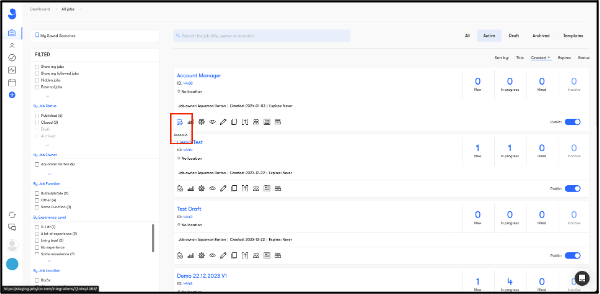
The user can navigate to the “Jobs” page and find their job in the list of jobs. From here, the user can select “Assessio” and set up the lens they would like to use for the job.
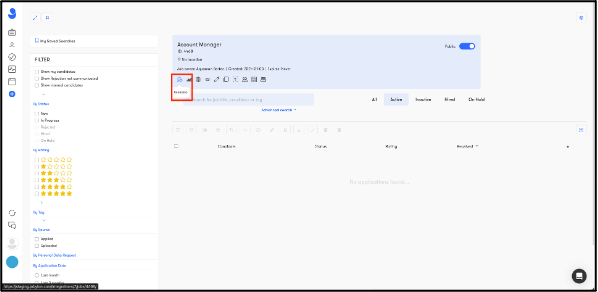
The user can also enter the job itself and select the same icon to set up the lens they would like to use.
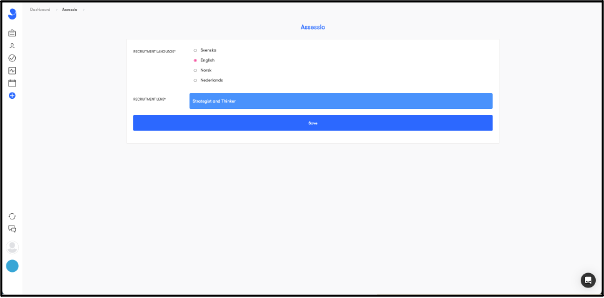
Selecting the icon will produce a page, where the user can select which language they would like to use when communicating to the candidates and which lens to use for the job.
Once saved, the user is brought back to the list of jobs. They can go to their job and add a candidate to the job. Once the candidate is created, they are taken to the candidate’s profile. From there, they can select the following three dots and select “Assessio”, which will invite the candidate to take the Assessio assessments.
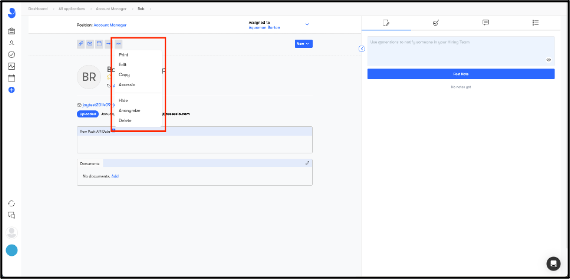
This will produce a modal, which just asks the user to confirm that they would like to send the application to Assessio.
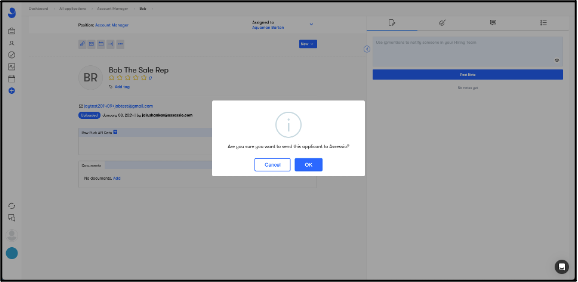
Selecting okay, the candidate will be sent an invite to complete the Assessio assessments. Once the candidate has completed the assessments, the results are sent to Jobylon. The results will be color coded:
- Green – Match score between 80 to 100.
- Blue – Match score between 60 to 79.
- Yellow – Match score between 0 to 59.
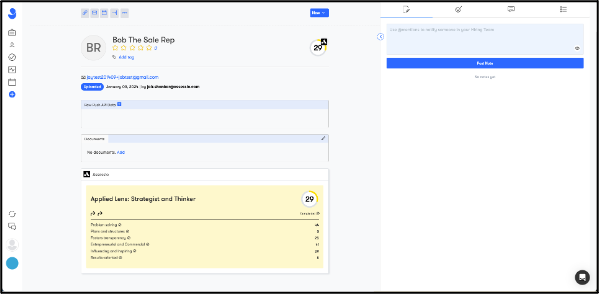
There are two arrows under the lens name. The first is a backlink to the recruitment itself. The second is the link to the candidate’s feedback report.
Inviting a candidate with a trigger
In the following example, the user is setting up an auto-trigger to send out an assessment to a candidate. The first step is to select which language they would like to use to communicate with the candidates and which lens they would like to use for the job. Once set up, they can set up the trigger by navigating either to the jobs page or the job itself. In the screen shot below, we are in the job itself and the user can select “Pipeline Actions”. This icon is also available in the jobs page.
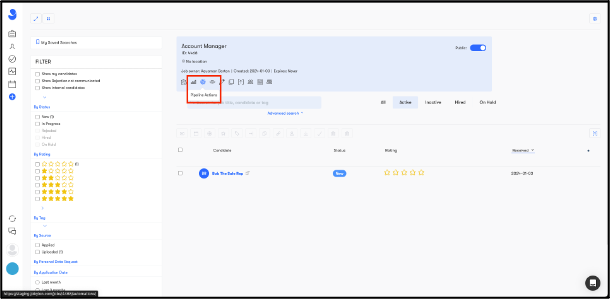
This takes the user to a separate page, where the user is exposed to the different steps in the job pipeline.
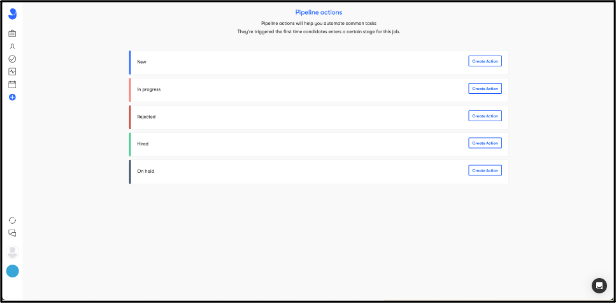
For this example, the user will be setting the trigger for the “In progress” step. They select “Create Action” associated with “In progress”, which produces a modal. The user will navigate to the menu item “Partner Integrations”.
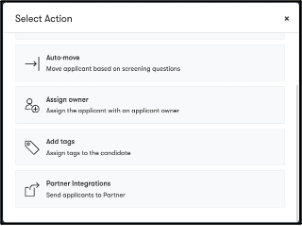
Selecting this option, will take the user to a separate page, whereby they need to select which integration they would like to have triggered when a candidate enters this step in the pipeline.
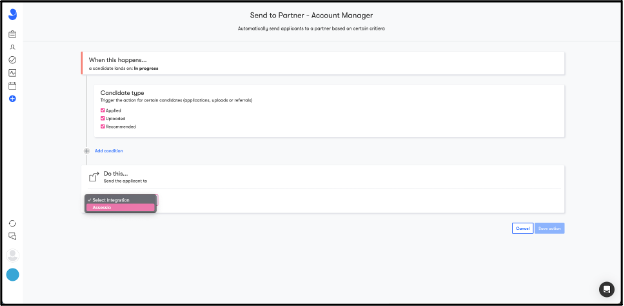
Once selected, they can save the action and they will see the following screen.
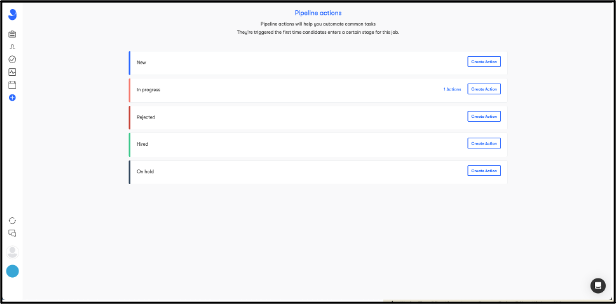
The user can now navigate to the job and add a new candidate. When creating a candidate to be added, one of the fields is “Status”. By setting the candidate’s status to “In progress”, they will automatically be sent an invite to the Assessio assessments.
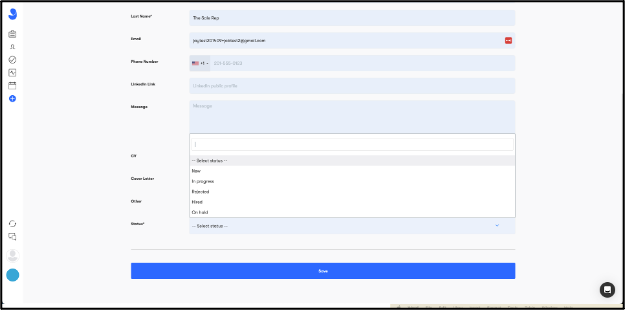
If the user is not ready to invite the candidate as yet, they can select “New” and the candidate will be created. When they user is ready to invite the candidate, they can change the candidate’s status by selecting the candidate and selecting “Change status”.
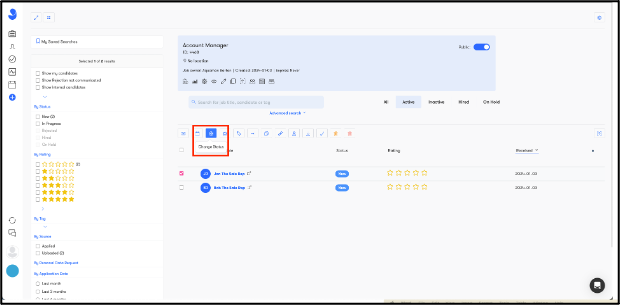
When they select “In progress”, the candidate will be sent an invite to complete the Assessio assessments.
Some notes about the integration
- When creating a candidate in the Jobylon UI, the email field is not mandatory. This is a problem since it is a mandatory field in the Assessio platform. This causes an error, therefore it is important to let the client know that an email is a requirement when using the integration.
- The list of available lenses are only updated every hour in Jobylon. When a client (un)hides lenses in the Assessio platform UI, it can take up to an hour before this is reflected in the Jobylon UI.
-
For each job that Assessio Platform get orders for assessments for from Jobylon Assessio Platform will attempt to add to recruitment collaborators members of Jobylon Job Hiring Team if:
- they don't have
adminorownerrole in Jobylon (new) - they have account in AP with recruitment module role
Collaborators (Recruiting team) can still be added manually from Jobylon. - they don't have