
Teamtailor
Set-up
The ATS integration can be set up via the back office using the “ATS connection wizard”, which walks the back-office user through the necessary steps to set up the connection to Teamtailor.
The first step is to activate the recruitment module, since without this active, the “ATS connection wizard” is not visible. Once activated, the back-office user can see the button that will produce the wizard.
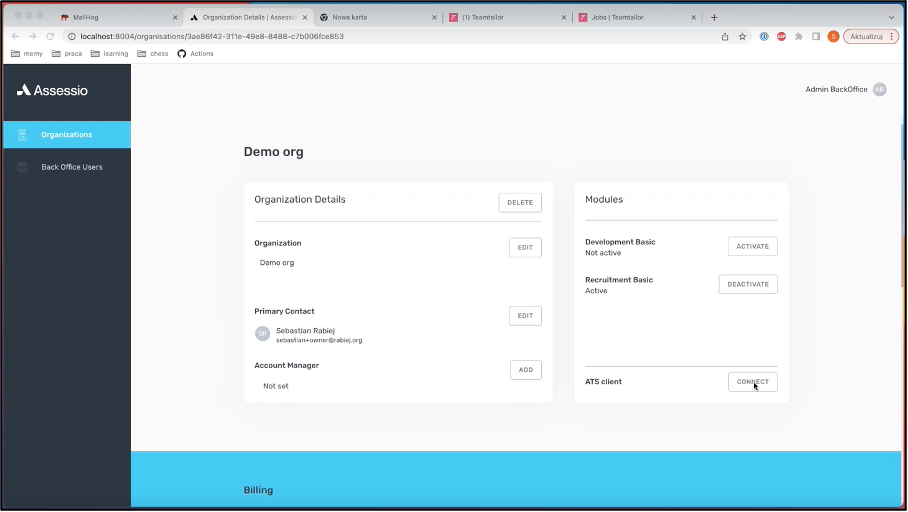
The wizard consists of 3 steps:
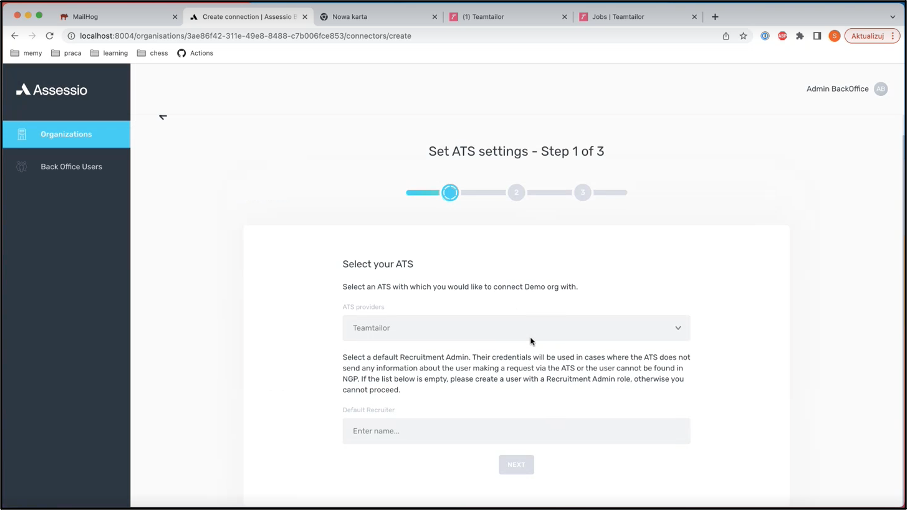
Step 1:
The back-office user is asked to select which ATS they would like to connect the organization to. Currently, the drop down only contains Teamtailor.
The back-office user is also asked to indicate who the default Recruitment Admin should be for the organization. The client should nominate who within their organization should be the default Recruitment Admin.
The default Recruitment Admin was mainly introduced because not all application tracking systems provide information about the recruiter making a request via the integration. Therefore, by setting a default Recruitment Admin, it is ensured that when a recruitment is created via an ATS, the creator is set to this Recruitment Admin. The consequences of this are that all communication with candidates will contain this user’s information as the sender and contact person.
It is important that the organization has at least one user in their system with the role of Recruitment Admin, otherwise the list will be empty, and the back-office user is not able to continue with the setup of the connection.
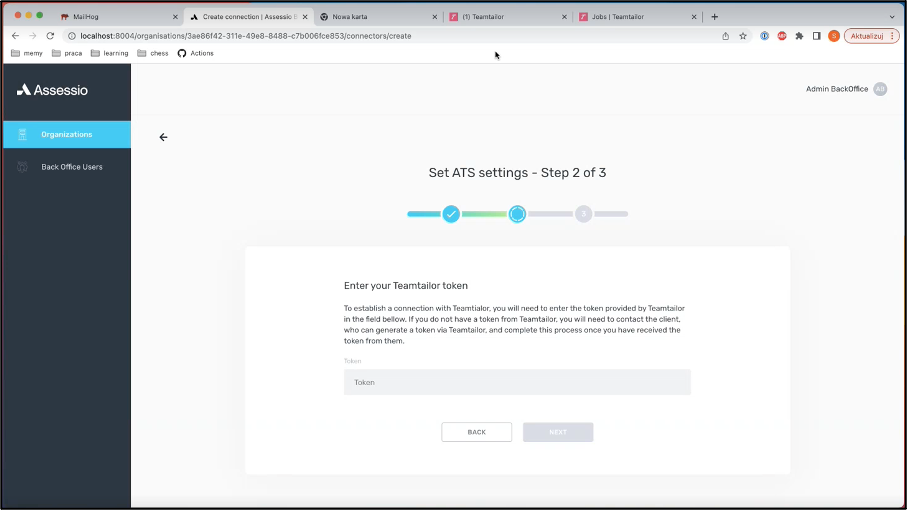
Step 2:
In the second step, the back-office user needs to submit a token, which is created within Teamtailor and needs to be provided to the back-office user by the client before they can provide to the third step. This is what ensures that the connection can be established and secure.
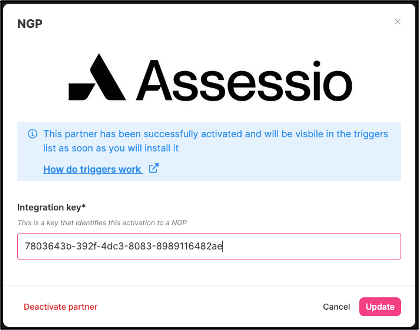
From within Teamtailor, the client must login and navigate to the marketplace. Once there, they need to search from “NGP” (a working title). Once selected, the user is brought to the “NGP” page and needs to select “Go to settings”. This produces a modal, where the client can see the token to be used. They need to copy this token and give it to the back-office user to submit in step 2. Once submitted, the back-office user can click on “NEXT”.
Step 3:
The final step contains an overview of all the information that was chosen and submitted by the back-office user.
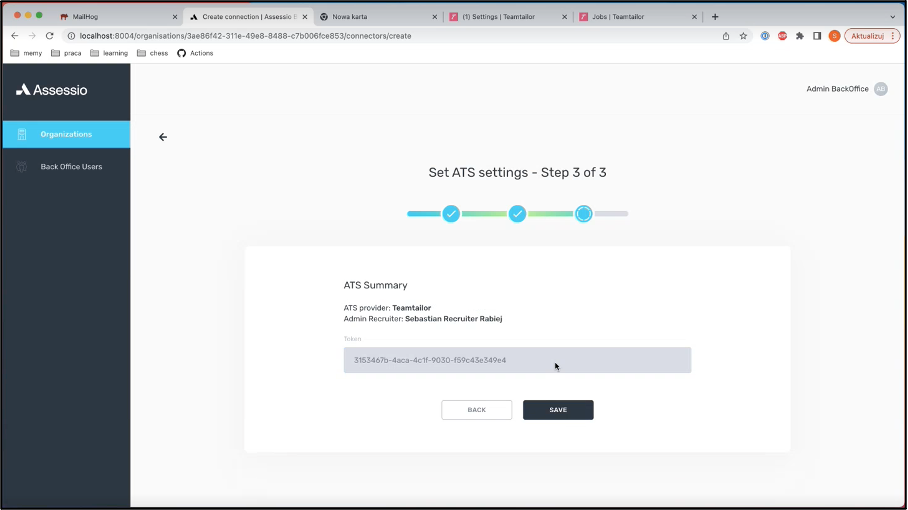
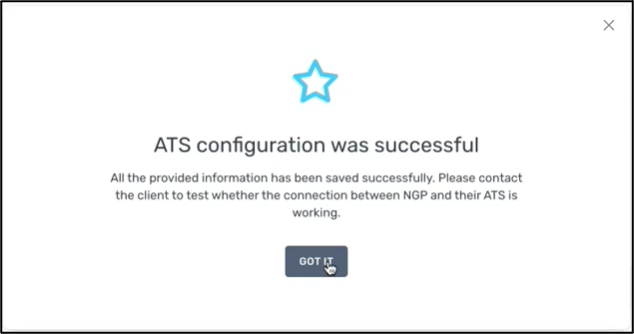
Clicking on save produces a confirmation modal. It should be noted that this does not ensure that the ATS integration is working, just an indication that the information has been saved. It is important that the client tests the integration to see that it was configured successfully.
Editing the ATS configuration
Once an ATS integration has been configured, the back-office user is able to edit the configuration.
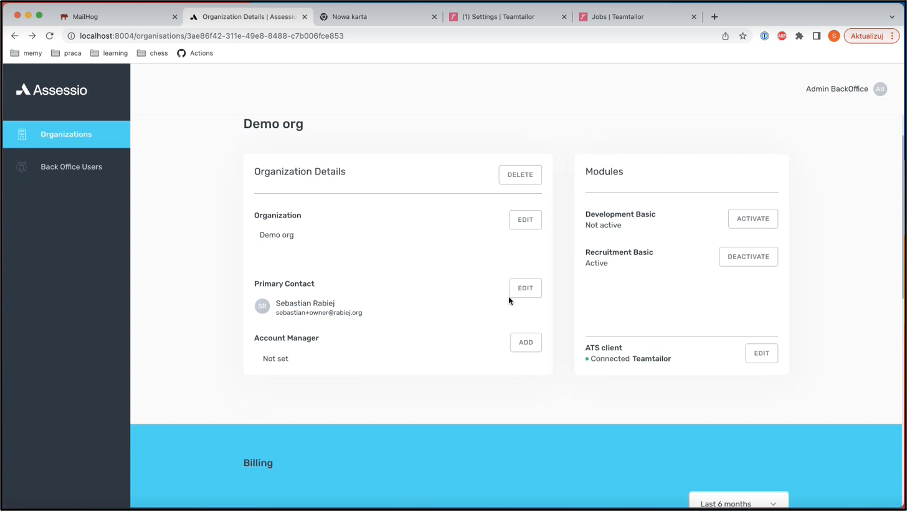
Selecting “EDIT” produces a modal, where the back-office user can change the default Recruitment Admin or update/edit the token.
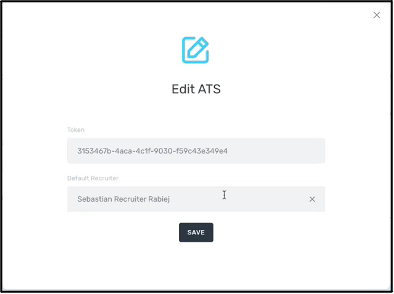
In the case of the integration not working, it could potentially be because the token provided or submitted is incorrect. Therefore, that is a possible place to check that everything has been configured correctly.
It should be noted that a user cannot be deleted or anonymized if they have been set as the default Recruitment Admin. Therefore, they need to be removed as the default before they can be deleted. If the user’s role has been changed to recruiter, this will have no impact on the ATS integration or what the user can see in the platform. Removing the user from the recruitment model will also have no impact on the ATS integration, but the user will no longer have access to the recruitment module.
Teamtailor UI
This section will highlight what it looks like from the perspective of the client using Teamtailor and how they can use the integration with the Assessio platform.
Job
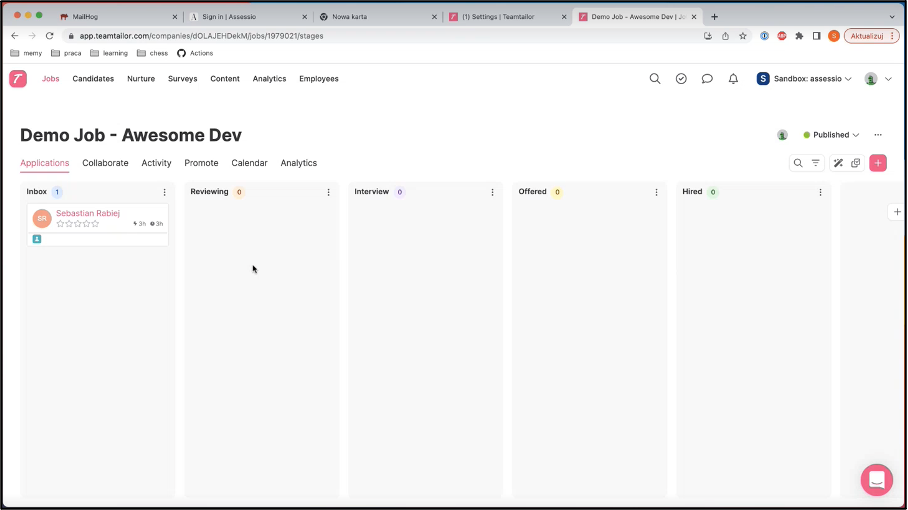
A recruiter creates what is called a “Job” in Teamtailor. Within a “Job”, there are different swim lanes that a candidate moves through. The recruiter can define how many steps (swim lanes) there are within their recruitment process.
Trigger
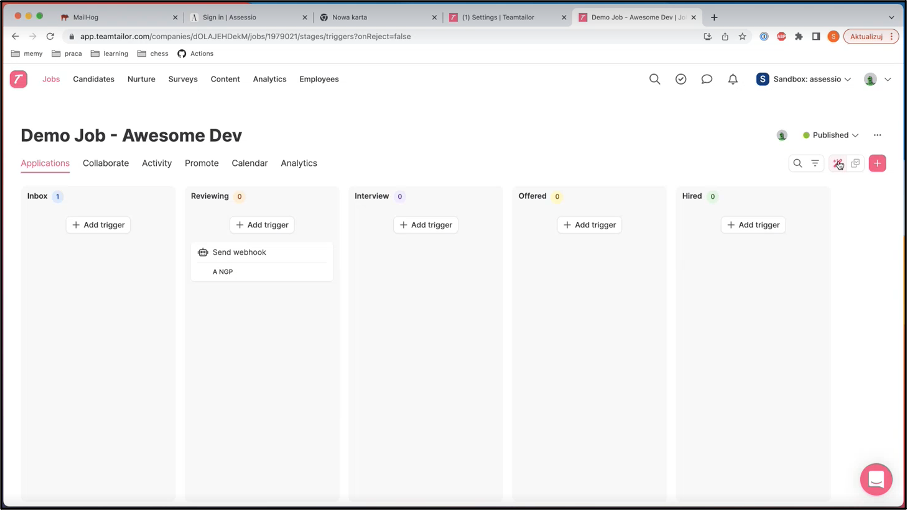
To add an assessment stage to a swim lane, the recruiter must change the above view to a
“Triggers” view by selecting the following icon:  . The effect of adding a trigger, is that candidates moved to the swim lane produces an automatic action to add the candidate to the recruitment, in the Assessio platform, associated with the “Job” and sending the relevant assessments to the candidate.
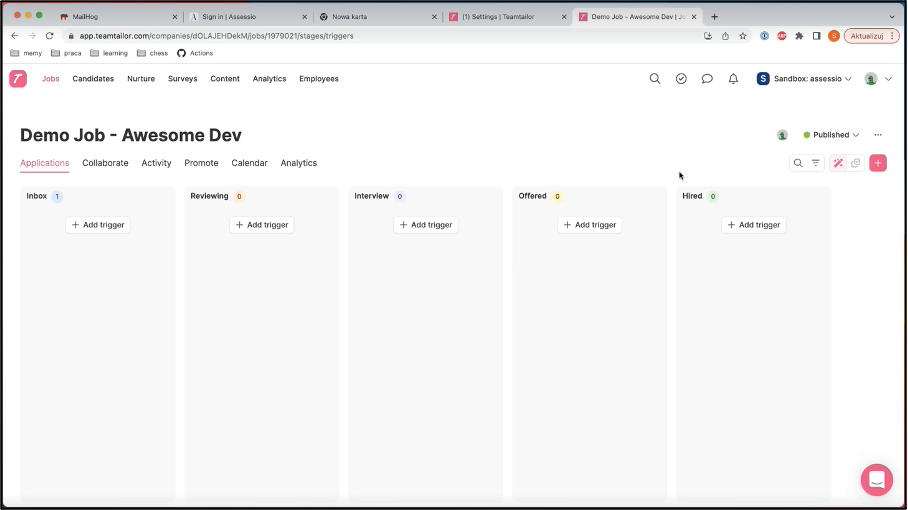
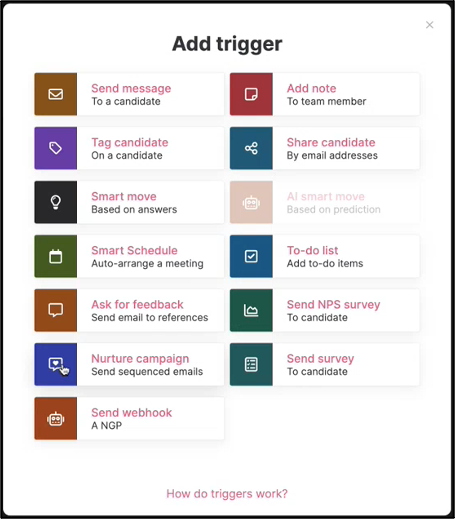
Selecting the “+ Add trigger” button produces a modal, where the recruiter can choose what they want to associate with the swim lane. They need to select the “NGP” trigger.
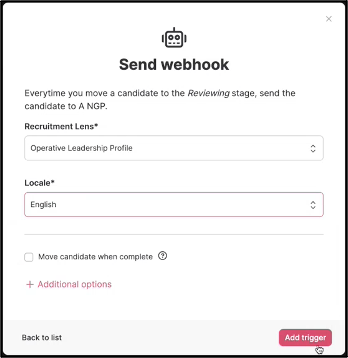
Once selected, the modal changes to produce a form with information needed to set up the associated recruitment in the Assessio platform. The recruiter must indicate what lens they would like to use to assess the candidates and in what language all communication must be with the candidates.
The recruiter will have access to all the lenses available in the Assessio platform. They will be able to search for which lens they would like to use.
The Assessio platform supports: English, Swedish, Norwegian, Danish, German, French and Dutch.
Once successfully configured, the recruiter will be taken back to the “Job” page.
Candidate in Teamtailor
When a candidate enters a swim lane that contains the trigger, the candidate is created and added to the recruitment associated with the “Job” in the Assessio platform.
Once created, the recruiter will be able to click on the candidate’s card in Teamtailor, which will produce a modal with information about the candidate. In that card, the recruiter will find a section associated with Assessio. In that section, they will see a link that will allow them to access the associated recruitment in the Assessio platform. This allows the recruiter to view the candidate and potentially send the candidate a reminder if they have not completed their assessments. It should be noted that the recruiter will need to have an account in the Assessio platform to be able to use this link.
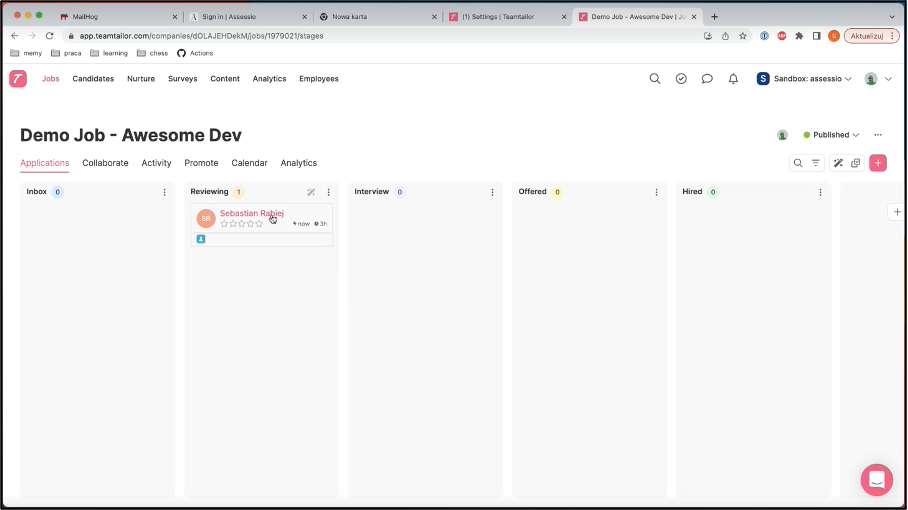
Once added, the candidate will receive an email, in the language indicated during set up, and they can complete the assessments. When the candidate has completed the assessments, the candidate will automatically receive their feedback report and their results are sent back to Teamtailor.
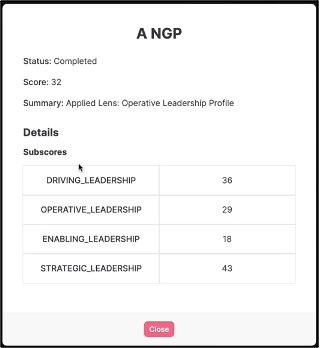
The results that are sent back to Teamtailor are the candidate’s match score to the lens and the underlying scores relating to the lens. The recruiter will have access to these in the candidate’s card, in the Assessio section. There is an additional link to the candidate’s feedback report. As with the recruitment link, the recruiter must have an account within the Assessio platform to have access to the report.
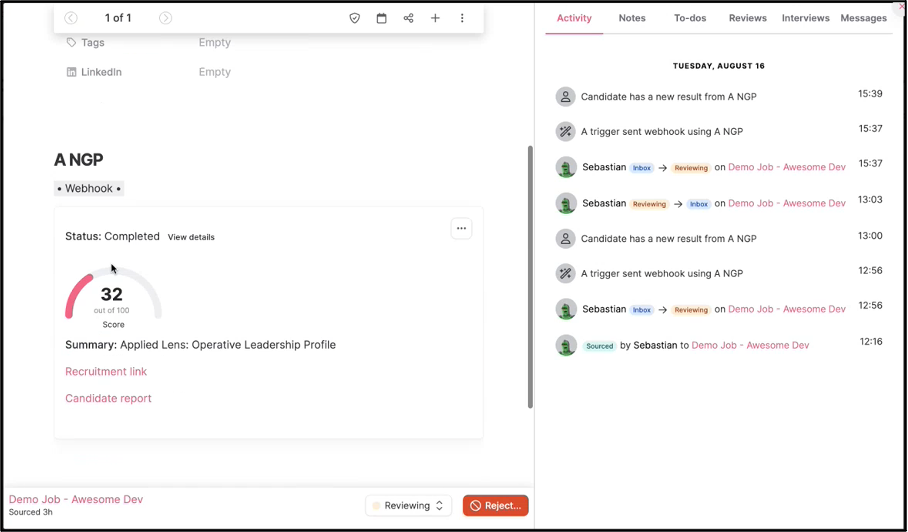
By selecting “View details”, the recruiter is shown the underlying scores associated with the lens.
The recruiter can now use the recruitment link to access the compare candidate section in the Assessio platform. This will allow them to have access to more in-depth insights into the candidate’s match score and underlying scores, since they can see where the candidate is under/overdoing.
Disconnecting with Teamtailor
The back-office user can disconnect the ATS integration. This will go into immediate effect and will mean that Teamtailor will no longer be able to communicate with the Assessio platform. All the data used within the API will be deleted, but the data within the Assessio platform will remain.
Any candidates who have completed their assessments during this disconnected period will not have their results sent to Teamtailor. There is currently no way to get their results into Teamtailor, therefore the candidates will need to be invited in a new “Job”. Therefore, it is important that when disconnecting that the client is aware of the impact that this will have.