
New ATS Integration - Varbi
Primary Markets/Countries: Varbi is a leading recruitment platform provider in the Nordics and Benelux regions.
- Number of Clients: Approximately 400 customers across Europe.
- Number of Users: The platform is used by over 37,000 recruitment professionals daily.
Varbi Integration
This document will provide information on how to set up an organization with a Varbi ATS integration and how the process looks like from within Varbi perspective.
Connecting a client with Varbi
The ATS integration can be set up via the back office using the “ATS connection wizard”, which walks the back-office user through the necessary steps to set up the connection to Varbi.
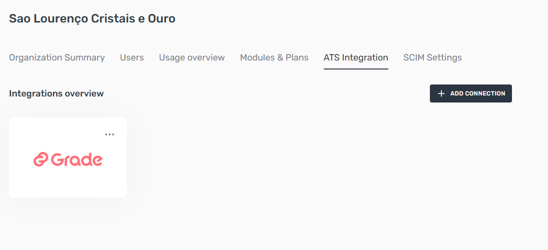
The first step is to have a recruitment billing plan assigned to the organization, since without the plan (for Recruitment), the “ATS connection wizard” is not visible. Once plan is added, the back-office user can navigate to the ATS integration tab and select “+ ADD CONNECTION”.
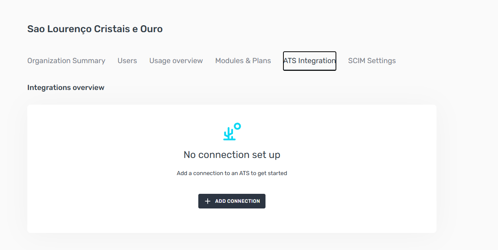
Step 1
The back-office user is asked to select which ATS they would like to connect the organization to. They should select Varbi.
The back-office user is also asked to indicate who the default Recruitment Admin should be for the organization. The client should nominate who within their organization should be the default Recruitment Admin.
The default Recruitment Admin was mainly introduced because:
- not all application tracking systems provide information about the recruiter making a request via the integration; or
- even if application tracking systems provide information about the recruiter, this user may not exist in the Assessio Platform.
Therefore, by setting a default Recruitment Admin, it is ensured that when a recruitment is created via an ATS, the creator is set to this Recruitment Admin. The consequences of this are that all communication with candidates will contain this user’s information as the sender and contact person.
It is important that the organization has at least one user in their system with the role of Recruitment Admin, otherwise the list will be empty, and the back-office user is not able to continue with the setup of the connection.
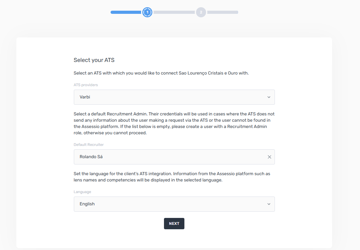
Step 2
The next step asks the back-office user to generate an API token for Varbi. This token will be used by Varbi when they send a request via the ATS.
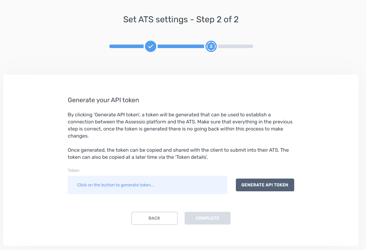
This will ensure that the requests the client makes via the integration is processed by the correct organization in the Assessio platform. Once saved, a confirmation modal is shown, indicating that the integration has been successfully set from the Assessio perspective. It should be noted that the ATS integration is not established yet and is just an indication that the information has been saved.
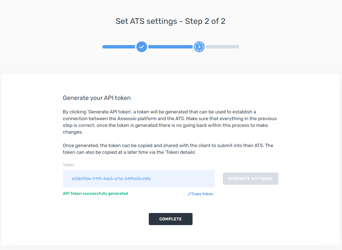
Note: Make sure to save this token because you will need it.
Step 3
The final step is for the back-office user to either coordinate with the client-organization owner or with Varbi directly and send the above token to the Varbi representative setting up the integration on their side. Once shared, this representative must activate the Assessio integration from their side and give this user access (ideally the owner of the client-organization) that will be creating the projects (jobs).
- Further explanation can be found on the bottom of this document - Some notes about the Integration
Editing the ATS configuration
Once an ATS integration has been configured, the back-office user is able to edit the configuration via the ATS settings option in the overflow menu.
Selecting “ATS settings” takes the user to a dedicated settings page, where the back-office user can change the default Recruitment Admin, update the Company Identifier or reset the token/client key (for Varbi’s is not possible to create your own key, it always needs to be generated).
It should be noted that a user cannot be deleted or anonymized if they have been set as the default Recruitment Admin. Therefore, they need to be removed as the default Recreuitment Admin, before deleting them. If the user’s role has been changed to recruiter, this will have no impact on the ATS integration.
Disconnecting with Varbi
The back-office user can disconnect the ATS integration. This will go into immediate effect and will mean that Varbi will no longer be able to communicate with the Assessio platform. The data within the Assessio platform, received when the integration was enabled, will persist and it will be possible to follow the lifecycle of a recruitment process, using Assessio Platform. However, bear in mind that any change done through Varbi’s UI will not reflect on Assessio.
Any candidates who have completed their assessments during this disconnected period will not have their results sent to Varbi. There is currently no way to get their results into Varbi, therefore the candidates will need to be invited in a new “Project”. Therefore, it is important that when disconnecting that the client is aware of the impact that this will have.
Varbi UI
This section will highlight what it looks like from the perspective of the client using Varbi and how they can use the integration with the Assessio platform
Setting up the Integration
In Varbi’s client UI, after login, the dashboard appears and you need to properly configure or make sure the integration is already set. On the top tab, you will find a section called Admin, click on it.
- Note that your user must be Admin for the entire organisation and have the permission to publish vacancies for the entire organization.
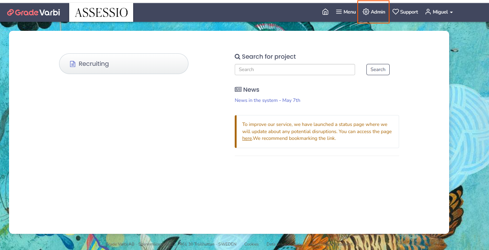
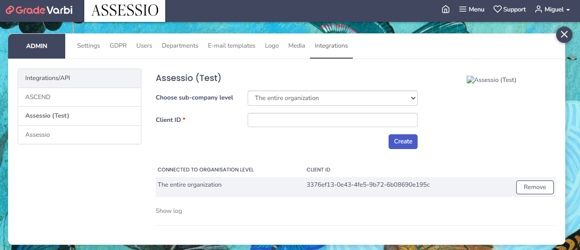
Admin page shows, select the tab called 'Integrations. This page shows the available integrations and you need to select the right one. For the sake of this tutorial, I will be using the testing environment, connected to our Sandbox, but all the steps are equal when setting up in Production.
At this stage, it’s expected that you already did the configuration in Assessio BackOffice, as stated previously on this document, thus a token was generated for your integration.
Select the Integration you which to configure and insert the copy pasted token into Client ID field, then just hit ‘Create’ button.
- If you manage multiple organizations in Assessio, you will need to generate and use different tokens.
This client ID will be used whenever Varbi communicates with Assessio.
Job
A recruiter creates what is called a “Project” in Varbi, after entering in ‘Recruitment’ from the main dashboard.
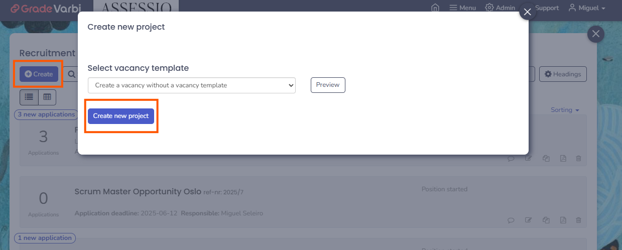
There are general information that needs to be filled in by the user, which they will be familiar with, such as project name, location of the job, etc. The UI at Varbi’s is quite rich regarding the information that can be added to a given project.
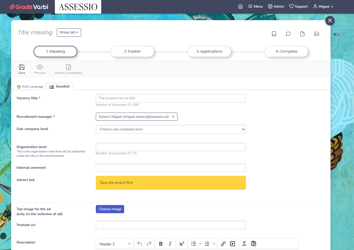
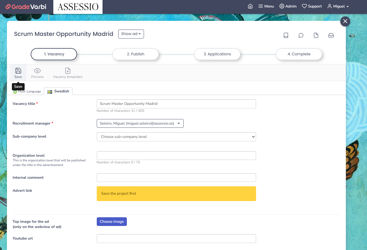
Not all information needs to be inserted at once, it’s possible to fill in some information afterwards, however, to use the integration, the user configuring the project needs to hit ' Save' button. The project needs to be ‘Save’ before the user is able to select the language for assessments and the lense that will be used in this project.
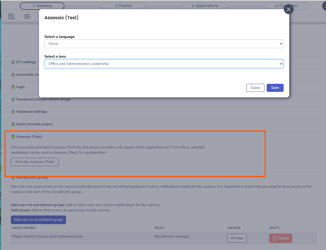
Once your project is saved and you are ready to select language and lense, scroll down to the bottom of the page and the Assessio option will be visible (if the project is not saved, this option is hidden). Once you click on ‘Activate’, a modal to select language and lense(s) is displayed, once you are done, hit ‘Save’ button.
Bear in mind that you can only go to the 2nd step of the flow in Varbi’s UI, called ‘Publish’ once all mandatory information (marked with asterisk) is filled in ‘Vacancy'.
Adding Candidates
Clicking on ‘Applications’ 3rd step is where one will insert the candidates for this project
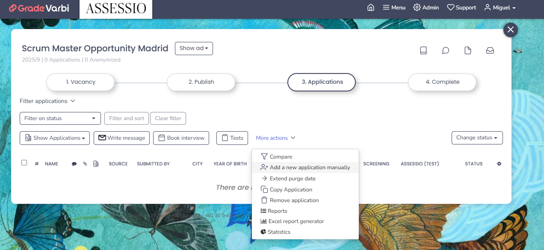
Within the 3rd step ‘Applications’ use ‘More actions link’ and select ‘Add a new application manually’.
Agreeing to GDPR is mandatory, as well as First Name and Surname of the candidate introduced. Bear in mind that email address is not mandatory, but for the integration to work properly the candidate must have an email assigned.
Once candidates for the project (recruitment) are introduced, make sure to select the candidates that must receive the Test. This can be done by ticking the checkbox nearby the candidate introduced.
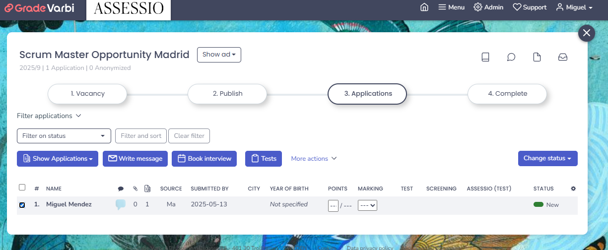 Then simply go to blue box ‘Tests’ confirm your candidate selection and hit button ‘Send’.
Please note that due to Varbi’s navigation panel, it’s possible to come into this step and send tests, without publishing your project, thus your project may be without a name. If that occurs, Assessio won’t be able to process Varbi’s request. Make sure to always assign a project name, before starting the integration.
At this moment, an email is triggered to the candidate(s) that are eligible to receive and complete the assessments in the language selected previously. In the case of this example, I selected Norsk, thus the email goes in Norsk, with the link to complete the assessments.
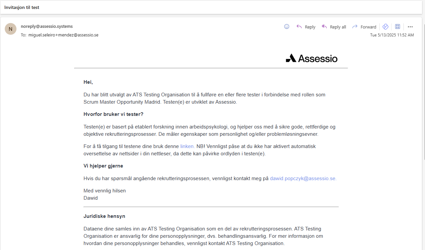
Email triggering may not occur in in real time. This is different from other ATSs, because Varbi’s processes orders differently. They run a job every 5min and depending on the number of orders in queue, receiving the email with the tests may take up to 5min.
At this moment, Assessio Platform gets information (in Varbi’s request) about who ordered the assessment (Hiring Manager/Lead). We use those people emails: if they've a Recruitment role and are users in the Platform we add them as collaborators for the relevant recruitment.
In the candidate’s table a new button is shown for each candidate that were picked for the assessments. The button is called ‘Show’.
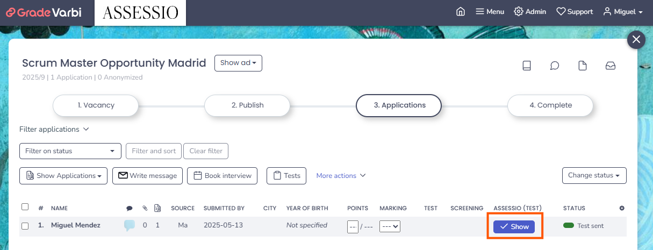
The modal shows which lens is in use and provides a direct link to the Recruitment created in the Assessio Platform.
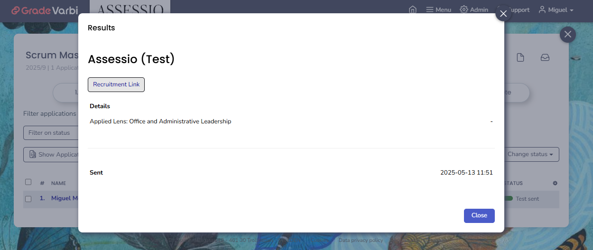
The link only works if the user is already logged in. Else, a login needs to be done before being able to access the Recruitment created.
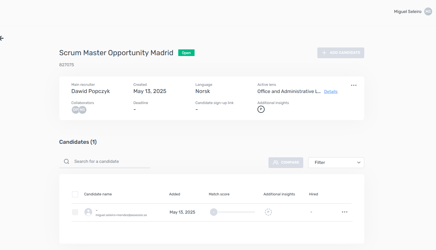
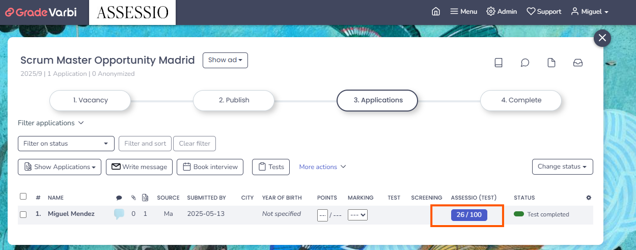
Once answers are provided by the candidate(s), the match score is visible wherea before we had the ‘Show’ link. To see the match score it’s possible that a refresh to previous page is required.
It’s still possible to access the modal. The previous information is still there but now there’s a new link with - Candidate Report - exposed in the Varbi UI. As previously stated regarding recruitment link, one needs to be logged in for the Report to open right away; in addition, person checking this at Varbi’s UI needs to be a Recruitment Admin or a recruiter that is part of this recruitment process.
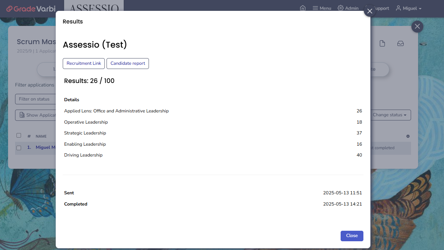
Both Match Score and details around specific competencies of the lens are available in real time, as soon as any candidate completes their assessments for this specific project.
- It’s possible to change the lens until the Completion of the project. Bear in mind that from a Varbi UI standpoint, changing a lens and having candidates that completed the assessment with previous lens, may generate incongruencies in the UI (ie. match score).
Some notes about the Integration
- Varbi has a backoffice application that their Customer Care or Support team manages on how a company “looks like” in Varbi, and since the customer needs a contract with both Assessio and Varbi to get the integration available they (Varbi) have this control/setting. This is usually part of our implementation project per customer and never been a problem and usually handled by our Sales team with tight contact with Customer Care.
- There’s a single token generated through this integration, which means that if we have a client that has multiple organizations inside Varbi, the token, as a single ID, ensures that those multiple organizations can use the same organization on Assessio’s side.
- There are two things that can be configured when setting up the Job (project) via Varbi’s UI: language and lens that will be in use in the recruitment process.
- It’s possible to expose only a group of lenses to the Varbi API, this is done inside the Assessio Platform. The Recruitment Admin can decide which group of lenses is possible to be viewed in the organization.
- When there’s a project already saved, there’s this ID of the project created by Varbi’s. This ID is also visible within the Recruitment process page in Assessio Platform (in the description, below recruitment process name).
- The ID can be useful if you navigate several times in between multiple projects in Varbi.
- After sending tests to candidates using Varbi’s UI the candidates will receive an email. However, this step may not occur in real time. Depending on the number of orders that Varbi’s have in queue from different integrations, a delay of up to 5min in between sending the tests and the candidate actually receives the email, can be expected and needs to be considered normal (by design on Varbi’s side).
- If you decide to send tests again to a candidate that already completed the tests, even though in Varbi UI, there’s success, it’s likely that no email will actually arrive in the candidate inbox (unless, you delete that candidate from the recruitment process, using Assessio Platform. For retakes, use Assessio Platform itself.
- Bear in mind that if a candidate successfully retakes an assessment, match score and competencies details will not be changed in Varbi’s UI. We actually explicitly prevent sending the second score update after retake, this is by design for all integrations in order to avoid duplication in scores.
- In case of an encountered problem in the integration and more specifically from Varbi’s into Assessio Platform, the procedure they do is the following:
- They are running 5 retries (last retry occurs 34hours since initial failure). They also always keep all the data, meaning that it’s possible to manually re-run this as well, once it’s figured out, what’s the problem is. In case of further assistance or extra details, their Support team is available, and customers have the ability to make a support ticket directly from our application. Otherwise it’s support@grade.com