
What it is
The Candidate Page brings everything about a single candidate together in one view: their core details and every recruitment they're part of. If you work across a lot of simultaneous recruitments, it's the fastest way to find a person and pick up where you left off.
Who can use it- Recruitment Administrators
- Recruiters
- Available on all plans
Open a Candidate Page
- Go to Recruitment.
- Open All Candidates.
- Search for the candidate by name or email.
- Click the candidate to open their dedicated page.
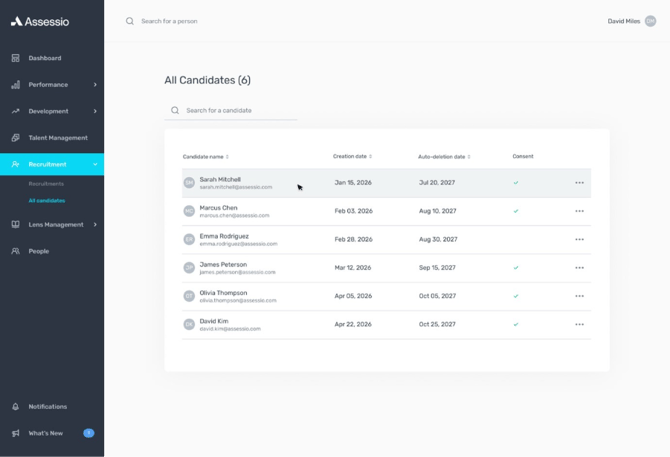
What you'll see
On the Candidate Page you can view:
- The candidate's core details
- Every recruitment they're part of, listed in one place
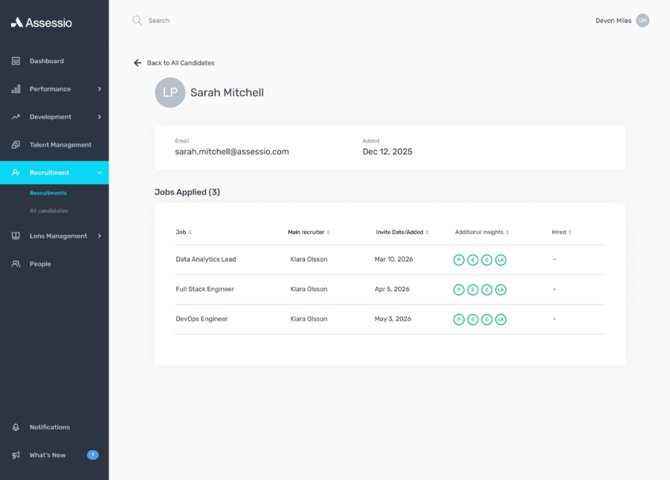
Jump to a recruitment
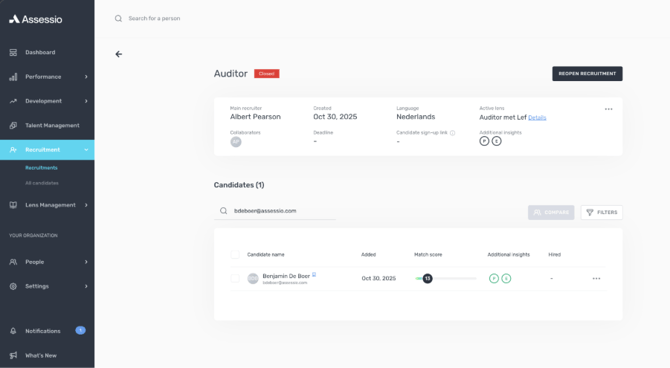
- On the Candidate Page, find the recruitment you want.
- Click it.
You'll be taken straight to that recruitment, with the candidate already filtered in — so you can pick up the conversation right where you need to.
Things to know
- You'll only see candidates and recruitments you already have permission to view.
- Existing permissions carry over — there's nothing new to set up.
- The Candidate Page stays in sync with Recruitment, so it reflects the latest state as candidates move between recruitments.
- Recruitment Administrators and Recruiters see the All Candidates entry.
- For each candidate, users only see the recruitments they already have access to.
For admins
No configuration is required. Access is governed by your existing user permissions:
FAQs
Why don't I see all candidates? The Candidate Page respects your existing permissions — you only see candidates from recruitments you have access to.
Can I take action on a candidate from this page? The Candidate Page shows core details and recruitments. For detailed actions, click any recruitment to open it with the candidate pre-filtered.
Is this available on my plan? Yes. The Candidate Page is available on all plans for Recruitment Administrators and Recruiters.