
Elevo is keeping up with the latest developments, and offers a preview of the use of artificial intelligence to help identify key elements in 360° feedback.
💡 Note : This feature is only available for organizations that have subscribed to the AI option. This summary option will be automatically applied to all 1:1 or feedback campaigns launched after the option has been activated.
👩🏽💻 Activating review categorization on a campaign
This option is enabled in step 4 of the campaign design process (the corresponding checkbox is checked by default):
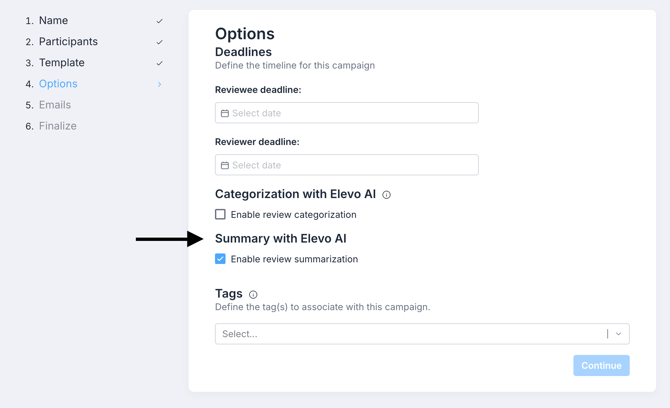
👀 AI feedback summary
Who can see the feedback summary?
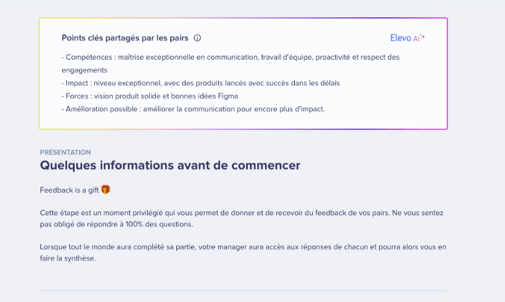
Anyone who has access to the feedback can see the summary: reviewees (if shared by the reviewer), reviewer, indirect and direct managers and admins.
Peers never have access to the summary.
When is the summary generated?
The summary is generated as soon as the first peer has shared his/her comments.
What elements of 360 feedback are taken into account when generating the summary?
Comments and responses from the reviewee and peers are taken into account.
Who can edit AI-generated content?
In Reviews and 360, only Global Admins, Performance Admins and targeted Administrators of the campaign can edit or delete AI content.
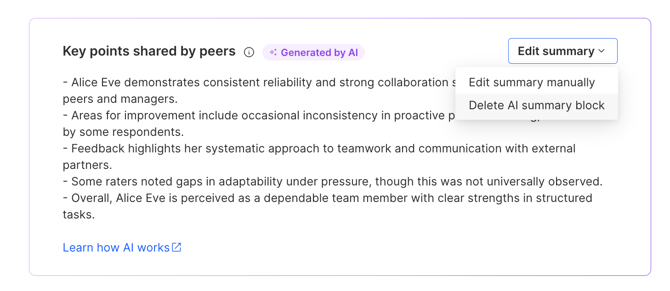
💡 Note : The most recent change is displayed along with the date, time, and the user who made the change.
Employees, managers/reviewers, target supervisors f the campaign and campaigns responsible can't edit the AI-generated content.
⚠️ Warning: Modified data will be overwritten; we do not keep a version history or the originally generated content.
Does editing AI content regenerate it or retrain the AI?
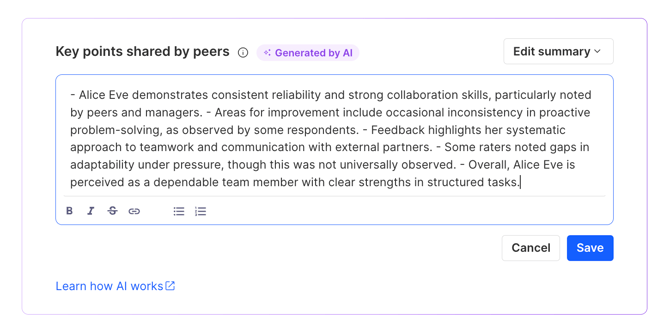
No. Editing replaces the displayed content with the admin's version. The AI is not re-run and does not learn from the correction. A deleted AI block cannot be restored.
How do I edit AI-generated content?
Click on "Edit summary" > Modify the content > Save.
How do I delete AI-generated content?
Click on "Delete AI summary block" > Delete.
⚠️ Warning: Deletion is permanent.