
How to add your organisation's logo to the platform
Your organisation's logo can now appear in the platform navbar, giving your team a consistent branded experience every time they log in — not just in outgoing candidate emails.
Who can do this
Only users with the Owner role can add or update the organisation logo. Admins and other roles do not have access to this setting.
If you need to update the logo but don't have Owner access, contact your organisation's Owner to make the change.
How to update your logo
- Log in to the platform as an Owner
- Click on your account menu and go to Organisation Settings
- Select Organisation Logo
- Click Upload and select your logo file from your computer
- Preview the logo to confirm it looks correct
- Toggle on/off logo in navigation/email as wanted
- Click Save
Your logo will now appear in the top navbar across the platform for all users in your organisation.
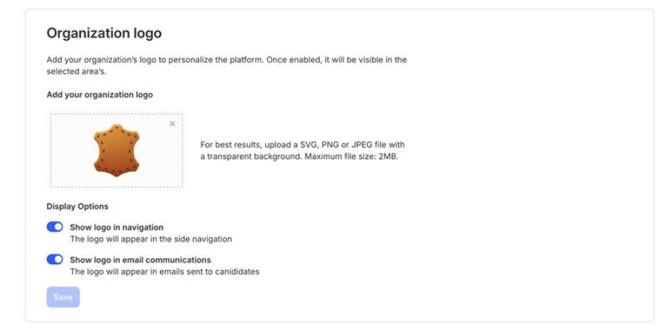
Once uploaded, your logo is shown in:
- The platform navbar — visible to all users when they're logged in
- Candidate emails — all outgoing emails sent to candidates (this was already the case)
- Format: PNG or SVG (recommended), JPG is also accepted
- Background: Transparent (PNG/SVG) works best against the navbar background
- Orientation: Horizontal (landscape) logos fit best in the navbar
- Size: We recommend a minimum of 200px wide. Very large files may slow down load times, so aim to keep the file under 1MB.
Both use the same logo, so you only need to upload it once.
Already have a logo set up?
If you previously uploaded a logo for candidate emails, it will automatically appear in the navbar too — no action required.
Logo file recommendations
For the best result across all screen sizes:
Removing or replacing the logo
To replace the logo, follow the same steps above and upload a new file — the old one will be overwritten.
To remove the logo entirely, go to Organisation Settings → Organisation Logo and delete the current file. The platform will revert to the default logo.
Troubleshooting
I don't see the Organisation Logo option in settings. This option is only visible to Owners. Check your role under your account settings. If you believe this is an error, contact your platform administrator.
My logo looks blurry or stretched. Make sure your file meets the recommended size and format guidelines above. SVG files scale without quality loss and are ideal if you have a vector version of your logo.
The logo isn't showing for other users. Changes take effect immediately after saving. Ask the other user to refresh their browser. If the issue persists, contact support.
Need more help?
Reach out to our support team and we'll be happy to assist.