
Who can use this feature?
|
Role |
Access |
|
Administrator |
Create, edit, share, publish, and revoke access to draft lenses |
|
Recruiter |
Create, edit, share, publish, and revoke access to draft lenses |
|
Recruitment Member |
View draft lenses shared with them |
Note: Draft Mode is currently available for AI Lens Maker lenses only.
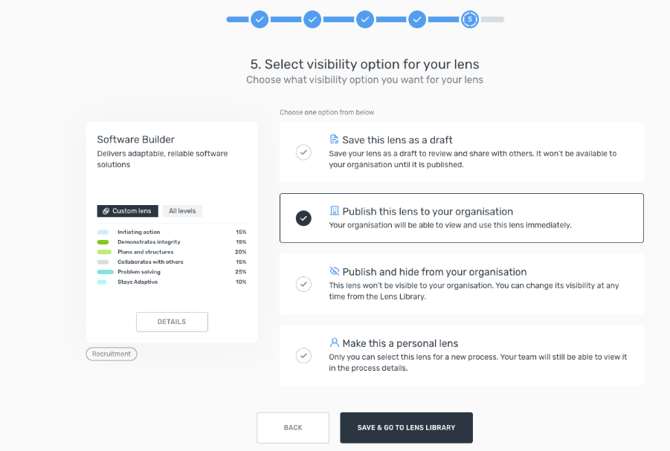
- Start the lens creation flow in the AI Lens Maker as usual.
- At the final step, instead of choosing to publish or hide the lens, select Save as draft.
- The lens is saved and will appear under the Draft tab in the Lens Library.
Your entire AI conversation—including all previous messages and context—is preserved. When you return to edit the lens, you'll pick up right where you left off.
Finding your draft lenses
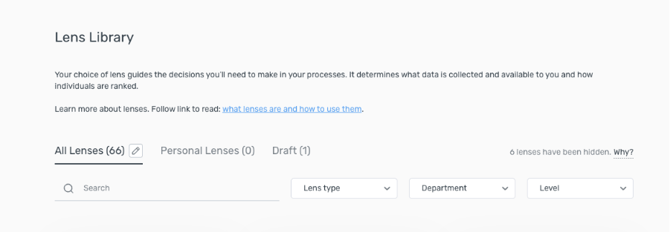
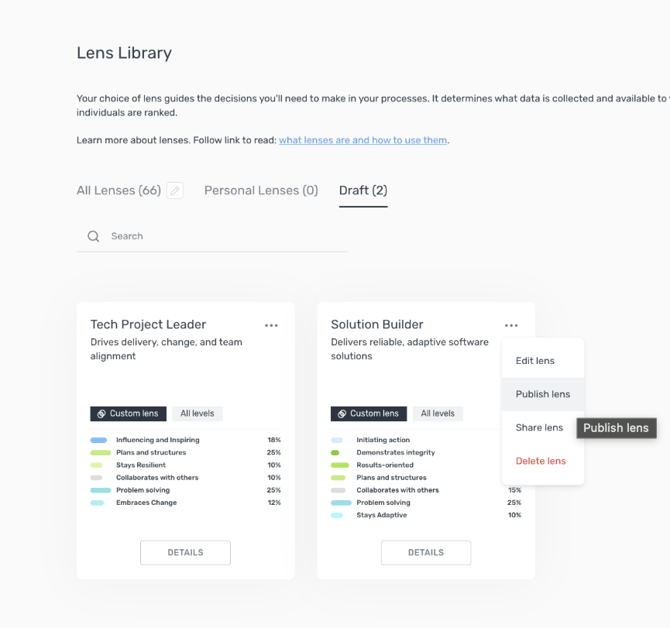
Open the Lens Library and click the Draft tab. All lenses saved as drafts are listed here.
From the Draft tab you can:
- Edit — Return to the AI Lens Maker creation flow to continue refining the lens.
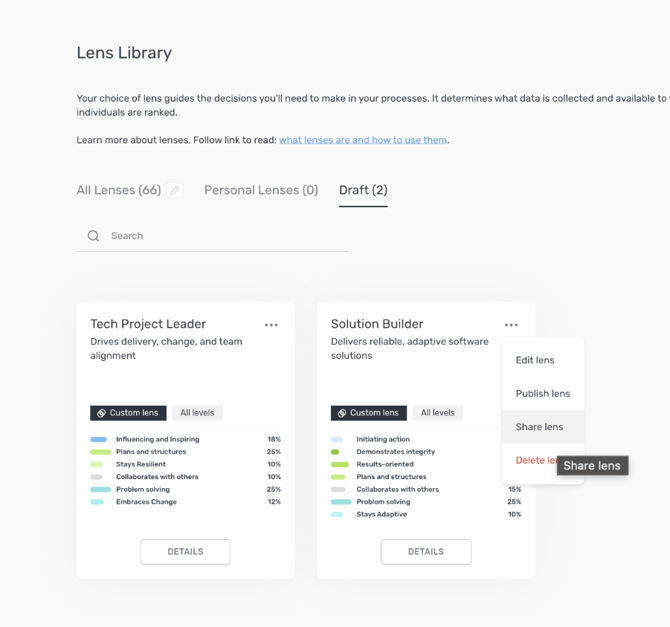
- Share — Send the draft to another user for review (see below).
You can share a draft lens with any user who has a recruitment role (Administrator, Recruiter, or Recruitment Member).
- In the Draft tab, open the lens you want to share.
- Select Share and choose the users you want to add.
- The recipients will see the lens appear in their Draft tab.
What recipients can do depends on their role:
- Administrators and Recruiters — Can edit the lens, publish it, or have their access revoked by the sharer.
- Recruitment Members — Can view the lens and its composition. They cannot edit or publish.
Reviewers can share their feedback with you directly (for example, via email or chat). In-platform commenting is planned for a future update.
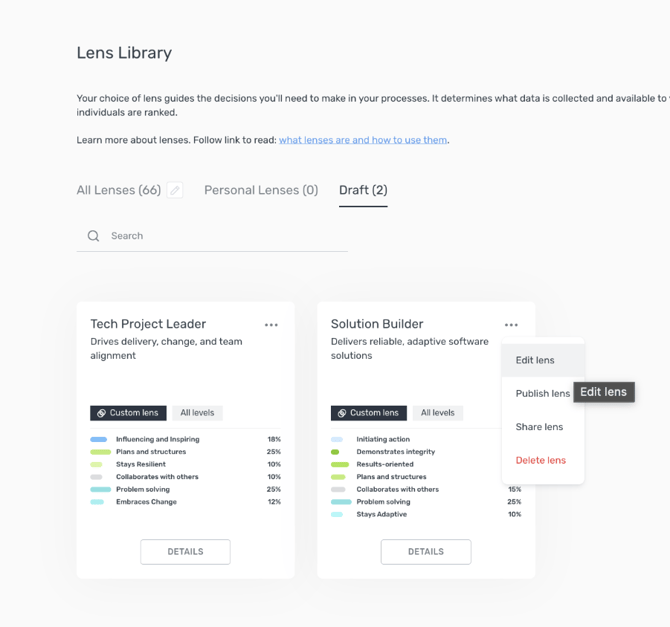
- Open the lens from the Draft tab.
- Click Edit. This takes you back into the AI Lens Maker, starting at the chat step.
- Continue the conversation, make adjustments, and move through the flow as needed.
- At the final step, you can save as a draft again or choose to publish.
Once a draft is ready, open it from the Draft tab and proceed through the creation flow. At the final step, choose one of the standard visibility options:
- Hidden — Only you and other admins can see it, it's not visible for the rest of the organization.
- Personal lens — Visible to you in your personal lens collection.
- Publish to organization — Available to everyone in your organization.
Can I create a draft lens without using the AI Lens Maker? Not at this time. Draft Mode is only available for lenses created through the AI Lens Maker.
Will my AI conversation history be lost if I close the browser? No. The full conversation context is saved with the draft and will be available the next time you open and edit the lens.
Can a Recruitment Member edit or publish a draft shared with them? No. Recruitment Members can only view the lens. Editing and publishing are restricted to Administrators and Recruiters.
Can I share a draft with someone outside my organization? No. Sharing is limited to users within your organization who have a recruitment role.