
This feature allows the HR team to automatically translate the skills matrices present on Elevo using artificial intelligence. Thus, a considerable time saving is achieved and the matrices are accessible to all of your employees.
- 🤓 General information about the feature
- 🔍 Translate a skills matrix
- 📒 Define a glossary
- 🪜 In what order should the matrices be created and translated?
🤓 General information about the functionality
Who benefits from this feature?
This feature is available when the Skills and Elevo AI products are activated. Only users with the role of "Global Admin" or "Skills Admin" can translate matrices (Managing administrator rights: roles and permissions).
💡 Note: Content created or translated with AI show a "Translated by AI", "Generated by AI" or "Generated and translated by AI" tag and the date of the last edition
Which elements are translated?
- the title of the matrix,
- the levels of the matrix and their descriptions,
- the names of the levels of expectations and the content of the expectations for the mapped skills,
- the names of the associated domains.
💡 Note: Skills belonging to the same domain but not mapped to levels in the matrix will not be translated.
Which languages are available?
Only the languages that are already activated in the space as content languages. If you wish to add a new language, please contact Elevo Support (support@elevo.io).
🔍 Translate a skills matrix
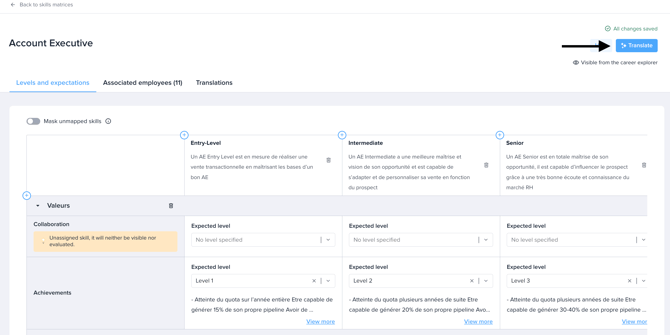
In order to translate a matrix, go to Skills & Career > Matrices and skills > Matrix to be translated and then click on "✨ Translate" at the top right of the screen.
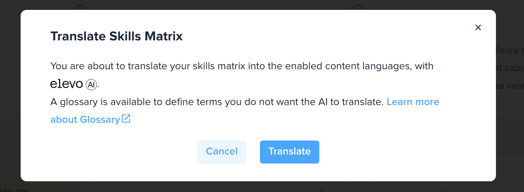
A modal will open asking you to confirm that you wish to translate the matrix into all the content languages present in your space.
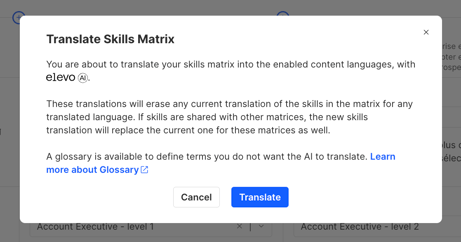
⚠️ Warning: If you have manually edited a translation (as described later in this article), rerunning the translation will remove any manual edits you previously made.
The translation may take a few minutes, a banner will appear at the top of the screen and the button "✨ Translate" will be grayed out during the execution of the action.

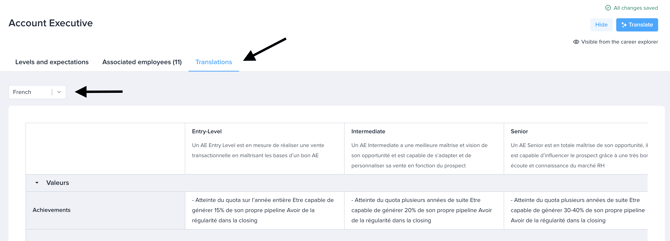
Once the translation is complete, click on the "Translations" tab and navigate through the drop-down menu of languages to view the translations of the matrix.
💡 Note: If you wish to remove the translations, please contact Support indicating the relevant language.
Translations appear automatically throughout Elevo based on the user's content language. In particular:
- in the user's profile,
- in the career explorer,
- in the skills assessment review.
💡 Note: If the matrix has been translated, but not the review template, then the review template will appear in the default language and the matrix in the content language selected by the user. For example, if your template is only available in French and English (the latter being the default language for this template) but you have matrices translated into German. A collaborator with their content language in German will have the review in English (the model's default language) but their skills assessment in German.
Can I modify the translation ?
Yes. Only if you are a Global or Skills Admin.
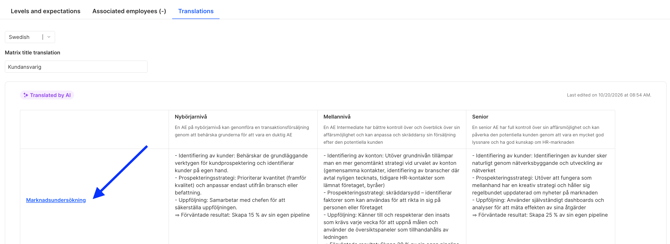
Go to the corresponding matrix, then click on Translations > Select the language you want to edit > Open the skills you want to edit in new tabs (right-click) so you can edit them directly at the root level (this will then apply to all relevant matrices).
The translation of a domain name can be edited directly from the matrix.
💡 Note : The most recent change is displayed along with the date, time, and the user who made the change.
Does editing a translation update the other languages or re-translate the matrix?
No. Each language is edited independently. Editing the English translation does not affect the French version, and editing the matrix in its main language does not update existing translations. To update a translation after changing the main language, Admins either edit the translation manually or run "Translate" again, which overwrites all existing skill translations, including manual edits.
The only things automatically reflected in all languages are structural changes: adding or removing a skill, adding or removing a level, and changing the expected level of a skill.
⚠️ Warning: Modified data will be overwritten; we do not keep a version history or the originally generated content.
Can I edit skill expectations from the matrix Translations tab?
No. Skill content is read-only in the matrix Translations tab, because skills can be shared by several matrices. Clicking a skill title opens that skill's Translations tab in the Skills library, with the same language selected. Changes made there apply to every matrix that uses the skill.
📒 Define a glossary
Each organization has its own vocabulary, so it is possible to define words that should not be translated, or to be translated in a particular way.
In order to define this glossary, go to the Settings of your space > Glossary.
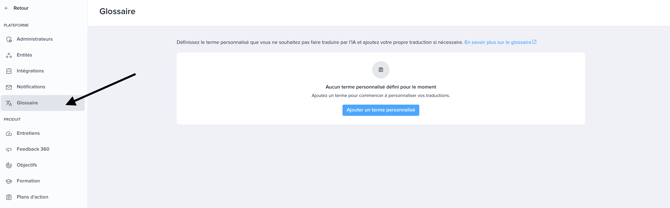
The complete documentation associated with the glossary can be found in this dedicated article: Glossary Management.
🪜 In what order should the matrices be created and translated?
Process 1 "I already know the terms/words for which I wish to customize the translation"
- Activate all the content languages you wish to translate in the matrix (to be requested from Elevo Support support@elevo.io)
- Create a matrix (in the most commonly used language → this is simply a recommendation).
- Associate all skills (or areas) with the correct matrix (as they can only be translated if you associate them with a matrix).
- Define your custom terms in your glossary (ℹ️ you can also add terms after translating the matrix).
- Then, go to the matrix you wish to translate and click on the translation button.
- The AI will detect the source language of the matrix you have written.
- The AI generates translations in all the languages of content that you have enabled in your organization.
All translations will be displayed in: the matrix tab, the career explorer, the profile, and the assessments.
Process 2 "I will first let the AI translate the matrix, then I will adjust the glossary accordingly"
- Activate all the content languages you wish to translate in the matrix (to be requested from Elevo Support support@elevo.io)
- Create a matrix (in the most used language → this is simply a recommendation).
- Associate all skills (or areas) with the correct matrix (as they can only be translated if you associate them with a matrix).
- Then, go to the matrix you wish to translate and click on the translation button.
- The AI will detect the source language of the matrix you have drafted and generate translations in all the content languages that you have enabled in your organization.
- Define your custom or fixed words in your glossary. The modification will be made automatically in the already translated matrices.
All translations will be displayed in: the matrix tab, the career explorer, the profile, and the assessments.