
Welcome to Elevo's new campaign management feature! This feature enables you to grant users access to a specific review or feedback campaign.
- 🧠 What do these rights consist of?
- 📍Who can assign these rights?
- 👩🏼🌾 How to assign these rights?
- 👀 How to view and change the administrator roles assigned in a campaign?
- 🙋🏻♂️ Questions
To learn more about roles in general, we invite you to review the relevant documentation: Managing administrator rights: roles and permissions
🧠 What do these rights consist of?
To delegate the management of a specific campaign (such as a trial period campaign), it is now possible to assign management rights to an employee who does not have admin privileges.
These rights comprise two levels:
- Campaign Administrator ➡️ Manages the campaign and can access both the content and results of reviews;
- Campaign Supervisor ➡️ Manages the campaign but cannot access the content and results of reviews;
☝🏻 Is it possible to target these roles at a specific segment of the population?
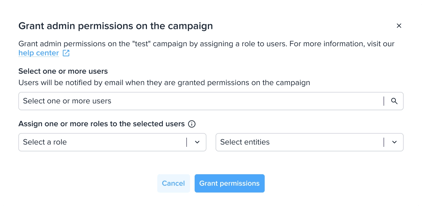
If you have the MLA (Dedicated Article) option, you can restrict the role to a subset of your population by selecting the relevant entity.
📍Who can assign these rights?
Only users with a global or performance administrator role can assign this right to another user.
Roles assigned to users in the campaign will apply only to this campaign, and the campaign must be launched.
What is the difference compared to a campaign manager?
- Campaign Administrator → Role assigned for a single campaign. Has access to the content of reviews.
- Campaign Manager → Manages all reviews and 360 campaigns, but does not have access to the content of reviews.
If MLA is enabled, these rules apply when defining roles by entity:
As an administrator with access to campaigns, I can grant permissions for one or more entities to any user of the application, but:
-
I can only see the entities to which I have access,
-
I can grant access to any entity to which I have access to any user of the application who is not already designated as an administrator for that campaign.
👩🏼🌾 How to assign these rights?
To assign an administrator role in a campaign, a user with a global or performance administrator role must follow the steps below:
- Access the relevant campaign by navigating to Reviews > Campaigns > Relevant Campaign;
- Click on "Other Actions" in the top right corner;
- Click on "Grant administrator permissions on the campaign";
- Select the relevant user(s)and choose the desired access level (administrator or supervisor);
- The selected user(s) will receive a notification informing them of the assignment of management rights for a campaign.
👀 How to view and change administrator roles assigned in a campaign?
- Access the relevant campaign by navigating to Reviews > Campaigns > Relevant Campaign;
- Click on "Other Actions" in the top right corner;
- Click on "See users with administrators permissions on the campaign" to view all users who have rights in that campaign;
- Here you can revoke a right by clicking on the trash can icon 🗑️ at the end of the line.
🙋🏻♂️ Questions
➡️ Can a user have these rights across multiple campaigns?
Yes, absolutely!
➡️ Do users with rights in a campaign have access to the "Skills" tab when this module is enabled in the campaign template?
No, users do not have access to that tab, as this information is confidential and can only be accessed by those with a global administrator or performance role.