
Two languages can be configured on Elevo: the platform language and the content language. Discover what differentiates them and how to configure and update them in this article: Language management on Elevo.
In order to provide review templates accessible to all of your employees, it is possible to write them in multiple languages. It is the language of the content set in the employee's profile that will determine in which language the template is assigned.
- ➕ Define the primary language of a template
- 🌍 Add additional languages
- 📝 Translate and manage additional languages
- 👁️ View and share the template
➕ Define the primary language of a template
Go to the relevant template, in the modal that appears you must first select the primary language (by default):
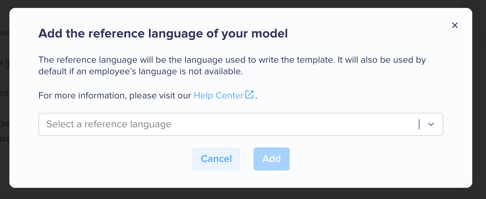
The primary language is the one you will use to write your template. It is also the language that will be used by default when a collaborator's content language is not completed or unavailable.
Modify the primary language
⚠️ Warning: To modify the primary language of a template, at least one additional language must have been added beforehand (🌍 Add additional languages).
It will then be possible to modify the primary language in the drop-down menu in the menu block on the right side of the screen.
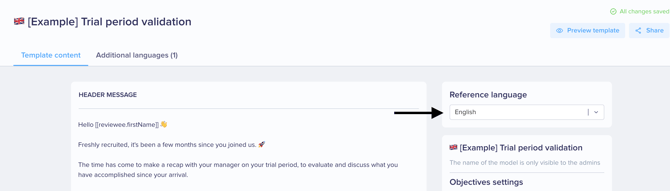
💡 Note: If I select an additional language as the primary language, for which the content has not yet been written, then the template will contain the blocks that had been configured but will be empty of content. The previous primary language will have been switched to an additional language, and the written content will have been retained.
🌍 Add additional languages
In order to add new languages for this template, please go to the "Additional Languages" tab.
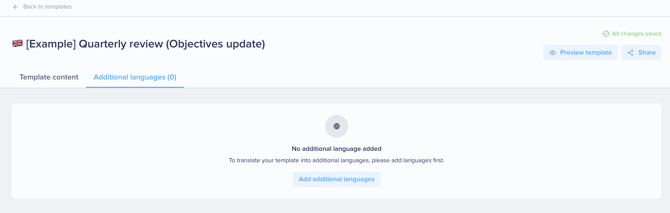
By clicking on "Add additional languages" you will have the option to select languages from those enabled in your space. If you wish to add additional ones, please contact Support (support@elevo.fr).
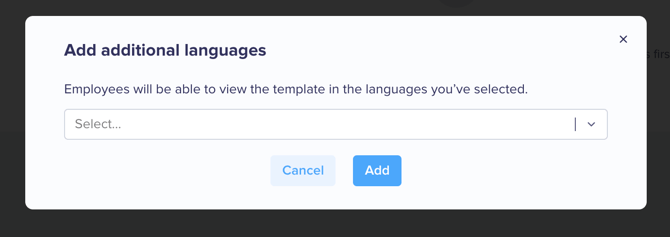
If additional languages have already been added, it is possible to manage them by clicking on "Manage languages":
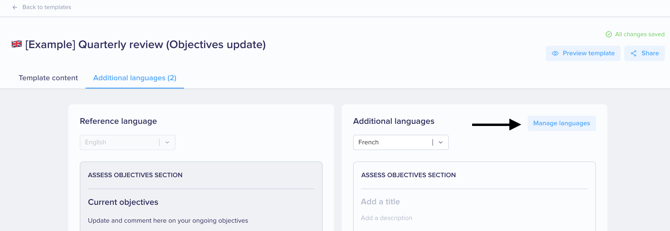
The language selection modal will open and it will be possible to add or remove languages.
💡 Note: If a language is removed and then added again, the translation will have been retained.
📝 Translate and manage additional languages
Once you've added the additional language(s), you have two options to translate individually each template:
- manually translate the template by filling out each block,
- click the “Translate” button to automatically translate the template.

⚠️ Warning: The AI-powered automatic translation option will only appear if you have subscribed to the AI option. If you have not, please contact our support regarding this matter.
Manual translation
You will find:
- on the left the blocks in the main language,
- and on the right the blocks in the additional language being drafted.
💡 Note: If you wish to edit the blocks as such (answer choices, settings) then this must be done in the main language tab "template content." Only the translation of the text can be carried out in the tab dedicated to additional languages.
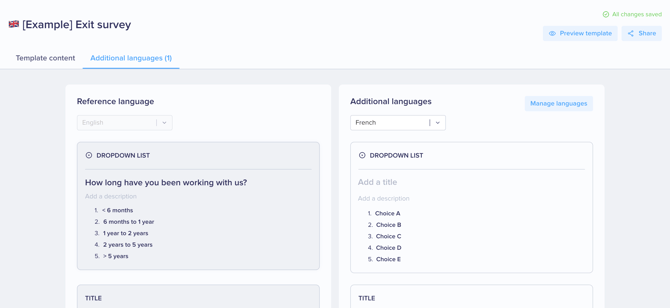
⚠️ Warning: Some blocks or question formats have default pre-filled choices, which will appear in the default language of the space and not automatically in the content languages.
AI generated translation
Once the translation is generated, you can review and edit the content just as you would with a manually created translation.
Although AI translation significantly reduces the time required to localize a template, we recommend reviewing the translated text before sharing the template with employees to ensure the wording matches your organization's terminology and communication style.
💡 Note: After a translation has been generated, you can continue to edit the translated content manually.
Re-translate a language
If the source language content is updated later, existing translations are not updated automatically. A new translation must be generated if you want to reflect the latest changes.
⚠️ Warning: Re-translating a language replaces all existing translated content for that language, including any manual changes that were previously made.
What content is translated?
AI translation applies to all textual content within the template, including:
- Template and section titles
- Questions
- Instructions and descriptions
- Answer options
- Rating labels and criteria labels
- Other custom text fields
The template structure and formatting are preserved whenever possible.
👁️ View and share the template
In this first version, only the template with the main language can be shared.
To learn more about sharing templates : Create and share a review template.