
On the Elevo side, the stated objective is clear: to give you more flexibility, autonomy and therefore control over user rights.
Regardless of the complexity of your organization, it is possible to harmonize permissions through predefined roles, based on our in-depth knowledge of customer needs.
You optimise and accelerate the configuration process, thus avoiding a complex and time-consuming setup.
- 🤓 What is a role?
- 👁️ Roles and rights for users
- 🪄 Roles and rights on products
- 🚪 Which users have access to role and permission management?
- ⚙️ How to set up role assignment?
- 🙋🏻♂️ Questions
🤓 What is a role?
A role is a set of permissions that allow a user to access different actions on Elevo. These roles are essential for limiting and controlling access to features or content within the tool.
In order to enable you to optimise and accelerate the configuration process, roles have been predefined. They are based on our in-depth knowledge of customer needs, thus avoiding a complex and time-consuming configuration.
👁️ Roles and rights for users
Visibility on data associated with employees
| Visibility |
Global Admin |
Users Admin |
Performance Admin |
Campaigns responsible |
Training Admin |
People Review Admin |
People Review Responsible |
Surveys Admin |
Skills and Career Admin |
| Users list | ✅ | ✅ | ✅ | ✅ | ✅ | ✅ | ✅ | ✅ | ✅ |
| On the profile | ✅ | ✅ | ✅ | ✅ | ✅ | ✅ | ✅ | ✅ | ✅ |
| On the professional background | ✅ | ❌ | ✅ | ✅ | ✅ | ✅ | ❌ | ❌ | ✅ |
| On remuneration data | ✅ | ❌ | ❌ | ❌ | ❌ | ❌ | ❌ | ❌ | ❌ |
| On the Career tab | ✅ | ❌ | ✅ | ❌ | ✅ | ✅ | ❌ | ❌ | ✅ |
| On the Reviews tab | ✅ | ❌ | ✅ | ❌ | ❌ | ❌ | ❌ | ❌ | ❌ |
| On the Objectives tab | ✅ | ❌ | ✅ | ❌ | ❌ | ❌ | ❌ | ❌ | ❌ |
| On the Given Feedback tab | ✅ | ❌ | ✅ | ❌ | ❌ | ❌ | ❌ | ❌ | ❌ |
| On the Training Requests tab | ✅ | ❌ | ❌ | ❌ | ✅ | ❌ | ❌ | ❌ | ❌ |
| On the Training tab | ✅ | ❌ | ❌ | ❌ | ✅ | ❌ | ❌ | ❌ | ❌ |
Edition rights on data associated with employees
| Edition rights |
Global Admin |
Users Admin |
Performance Admin |
Campaigns responsible |
Training Admin |
People Review Admin |
People Review Responsible |
Surveys Admin |
Skills and Career Admin |
| Admin rights | ✅ | ❌ | ❌ | ❌ | ❌ | ❌ | ❌ | ❌ | ❌ |
| Users (Profile details, Status, etc.) | ✅ | ✅ | ❌ | ❌ | ❌ | ❌ | ❌ | ❌ | ❌ |
| Possibility of exporting user data | ✅ | ✅ | ❌ | ❌ | ❌ | ❌ | ❌ | ❌ | ❌ |
🪄 Roles and rights on products
- 1:1 reviews and 360 feedback
- Skills & Career
- Surveys
- Training
- People Review
1:1 reviews and 360 feedback
Only the roles below have access to the management actions associated with the 1:1 and 360 Feedback products.
| Actions | Global Admin | Performance Admin | Campaigns responsible |
| 1:1 and 360 templates management | ✅ | ✅ | ✅ |
| 1:1 and 360 campaign management | ✅ | ✅ | ✅ |
| Overview of the content of 1:1 and 360 reviews and access to data export | ✅ | ✅ | ❌ |
| Audit report management | ✅ | ✅ | ✅ |
| Objectives management | ✅ | ✅ | ✅ |
☝🏻 Is it possible to target these roles in a single campaign?
Yes, absolutely! In order to allow for greater granularity and more use cases, it is possible to grant administrator rights to a single campaign.
For more information, please refer to the documentation on this subject:
- Granting management rights for a specific 1:1 review campaign
- Granting management rights for a specific 360 feedback campaign
Skills & Career
Only the roles listed below have access to the management actions associated with the Skills & Career product.
| Actions | Global Admin | Skills & Career Admin |
|
Create, modify, delete a skill |
✅ |
✅ |
|
Create, modify, delete a skill matrix |
✅ |
✅ |
|
Updating an employee's level |
✅ |
✅ |
|
Translate a matrix |
✅ |
✅ |
Surveys
Only the roles listed below have access to the management actions associated with the Surveys product.
| Actions | Global Admin | Admin Surveys |
| Create, modify, duplicate a campaign | ✅ | ✅ |
| Add/remove participants and send reminders | ✅ | ✅ |
| View detailed results | ✅ | ✅ |
Training
For more information on the roles associated with the Training product, please consult the dedicated article: Manage the rights associated with the Training product.
People Review
For more information on the roles associated with the People Review product, please consult the dedicated article: Manage the rights associated with the People Review product.
🚪 Which users have access to role and permission management?
Only global administrators have access to the administrator management feature and can modify the rights and their allocation.
⚙️ How to set up role assignment?
In order to access the administrator rights management, go to Settings > Administrators.
This page centralises the various roles assigned, indicating:
- the user concerned,
- its role,
- the last update of the role,
- and a menu at the end of the line allowing you to change this role or revoke it.
The possible actions are detailed below:
- Assign the global administrator role
- Assigning a different type of role
- Modify a role
- Delete a role
Assign a role
- Click on "Assign a role"
- Select or search for the employee(s) concerned
- Select the desired role in the drop-down menu
- Click on "Assign" to validate"
Several roles can be assigned to the same user.
Modify a role
To modify an assigned role, click on the "Modify the role of..." end-of-line menu, then select a new role from the drop-down menu in the modal before validating. The changes are effective immediately.
Delete a role
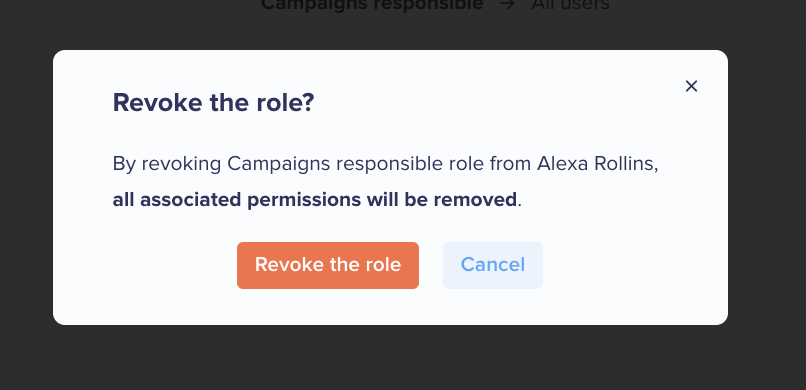
In order to modify an assigned role, click on the menu at the end of the line and then select "Revoke the role of..."
💡 Note: It is not possible to revoke all administrator rights, as there must be at least 1 global administrator on Elevo.
🙋🏻♂️ Questions
➡️ Is it possible to create custom roles?
No, this is not possible at the moment. We believe that the implementation of default roles covers most of the needs that have been mentioned by our customers to date. We are listening to your feedback on this subject in order to evolve the functionality if necessary.