The training dashboard provides training responsibles with reliable and centralized key performance indicators (KPIs) directly within Elevo, thereby eliminating the need to manually create reports through Excel exports. This allows you to monitor training investments and operational activity in real time. This feature enables you to prepare reports for the works council (CSE) but can also facilitate your work in justifying training budgets and managing your training-related strategy.
🧭 Navigation and access
Where is the Training dashboard located?
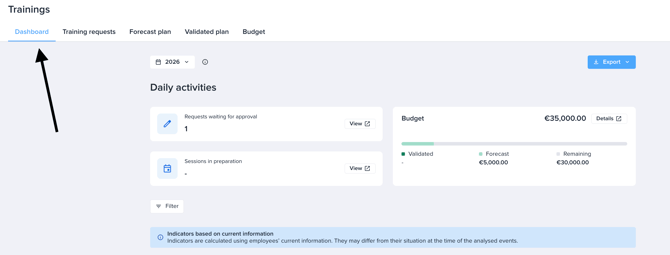
The dashboard is accessible from the Training > Training Plan and includes:
- Boxes with key performance indicators,
- Operational shortcuts,
- Graphs and visualizations,
- Comparative report tables,
- A global filtering system.
All displayed indicators are calculated from Elevo's training data and are updated in real time.
Who can access the Training dashboard?
Only users with the following roles can access it:
- Training Administrator
- Global Administrator
Users without access to the Training Plan tab cannot therefore access the dashboard.
⚙️ Settings
Periods
The dashboard only displays the last two periods.
This limitation helps to avoid erroneous analyses resulting from the use of current employee attributes to interpret historical data.
Available filters
The dashboard supports all standard filters of the platform. They apply globally to all key performance indicators (KPIs).
🗺️ Sections of the dashboard
Daily activities
Operational KPIs provide a quick overview of pending training actions.
Requests waiting for approval
Displays the number of training requests currently awaiting validation.
- Use the same calculation logic as the Requests tab.
- By clicking on the indicator, you will be redirected to the Requests tab for the relevant period.

Sessions in preparation
Displays the number of validated sessions whose status is "In preparation." By clicking on the indicator, you will be redirected to the Training Plan tab with a quick filter pre-applied to "In Preparation."

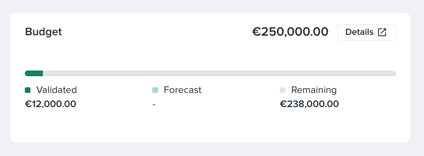
Budget
Displays the planned training budget. This KPI follows the same logic as the "Forecast Plan" tab.
Training investment
This section is dedicated to monitoring the training budget.
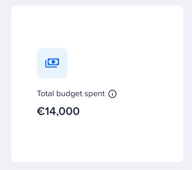
Total budget spent
Displays the total approved training budget for the selected period, expressed in the primary currency.
Breakdown of budget spent
Visual representation of the distribution of training expenses.
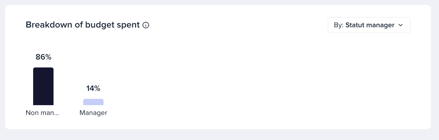
All filters on the platform are available as distribution dimensions to facilitate comparison.
This only takes into account the cost of validated sessions.
Employees trained during the period
This section evaluates the training volume.
Percentage of trained employees
Displays the proportion of active employees who have participated in at least one validated and completed session.

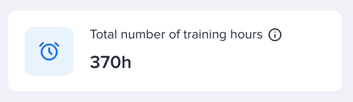
Total number of training hours
Displays the total volume of validated and completed training during the selected period.
Formula: Duration of training × number of participants in validated and completed sessions.
Average training duration per trained employee
Displays the average number of training hours attended by trained employees.
Formula: Total number of training hours ÷ number of distinct trained employees
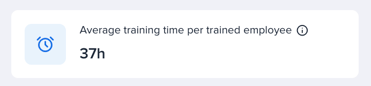
Only takes into account validated and completed training sessions.
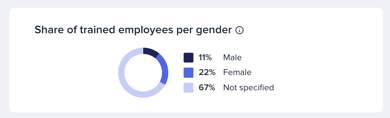
Share of trained employees per gender
Displays the distribution by gender of trained employees.
Each employee is counted only once, regardless of the number of sessions attended. Only validated and completed training sessions are taken into account.
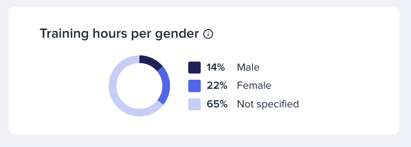
Training hours by gender
Displays the distribution of the total number of training hours by gender (for validated and completed sessions).
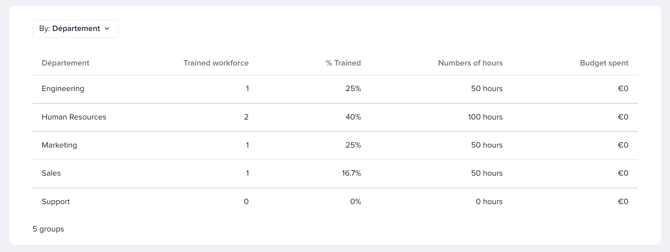
Comparative table
The comparative table allows for segmentation according to all the filters of the platform.
The figures are based on:
- the validated sessions,
- the conducted sessions.
Training sessions
This section is dedicated to the analysis of the training sessions.
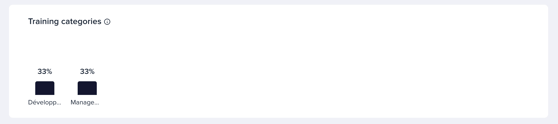
Training categories
Display the number of validated and completed sessions by category (tag).
A session may appear in multiple categories if multiple tags are assigned to it.
Only sessions with at least one participant are taken into account.
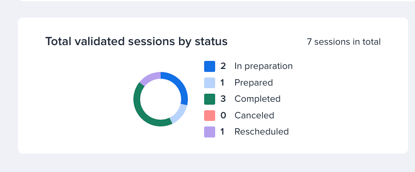
Total validated sessions by status
Pie chart illustrating the distribution of validated sessions by status.
Only sessions with at least one participant are taken into account.
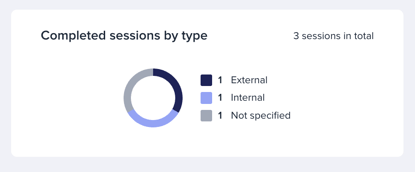
Completed sessions by type
Displays the distribution between internal and external training sessions.
Only sessions with at least one participant are taken into account.